EasyAccess 2.0 on Android
EasyAccess 2.0 is available for Android devices. With EasyAccess 2.0, users can easily use VNC or cMT Viewer to access remote HMI. Even though the UI and available functionalities on an Android device maybe slightly different from PC, the connection steps are as simple and straighforward.
EasyAccess 2.0 on Android requires Android version 4.1.2 or later.
App Download
Please download the EasyAccess 2.0 free apps from the Google Play store and install the app.
 | EasyAccess 2.0 |
VNC/cMT Viewer Download
- RealVNC VNC Viewer: Google Play
- cMT Viewer: Google Play
Step-by-step connection guide
- Launch EasyAccess 2.0 app.
- Enter Domain name, Domain user’s username and password, and then click [Login].
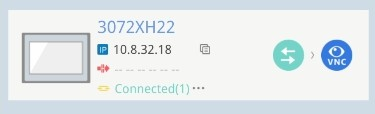
- Once logged in, the app will list user’s HMIs and their statuses.
- Click on the connect button to establish connection to an online HMI.
- Once connected, the virtual IP address will be displayed. It is now possible to connect directly to the remote HMI by VNC or cMT Viewer.

Note: To connect using VNC Viewer, you need to install VNC Viewer and specify the default VNC Viewer in Settings => VNC. You can also use the built-in VNC.
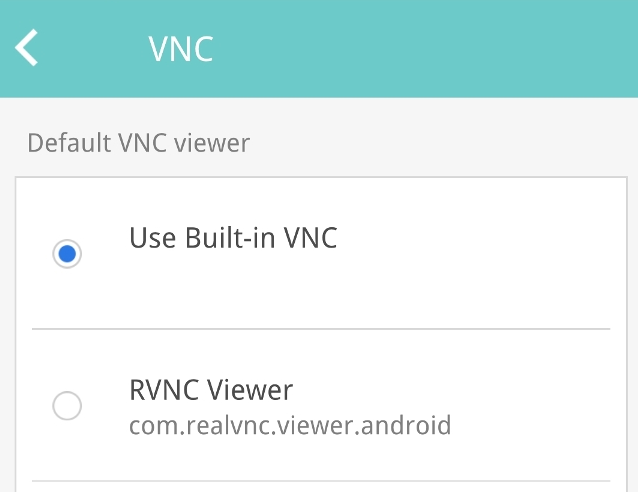
Built-in VNC Viewer
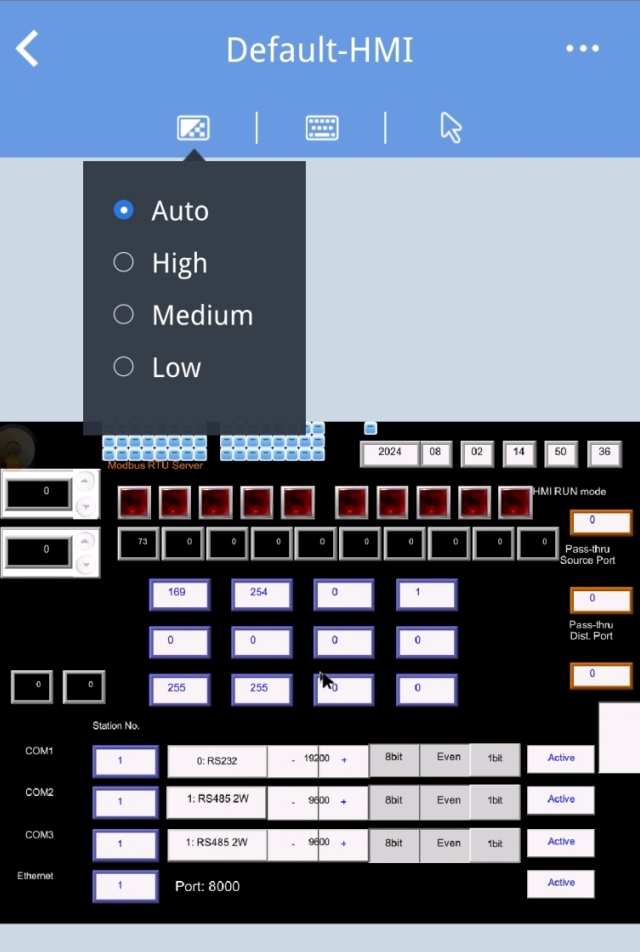
When connecting with the built-in VNC Viewer, the screen will display as shown below.
Adjustable parameters include selecting the color level and choosing the control mode as mouse or touch.
Pass-through
Please configure the "Pass-through IP" before starting the VPN connection. (Note: This logic differs from the standard PC operation).
Pass-through is only applicable when using the weintek-p2p mode.
If connecting to multiple HMIs, the pass-through function is supported only for the first device that establishes a connection.
If the pass-through setting displays as "-- -- -- -- -- --", it indicates that the setting is currently not active or has not taken effect.