Smart Report
Beta Version Description
This feature is currently in beta, meaning it is still under development and optimization. Users may encounter some limitations or inconveniences while using it. We welcome your valuable feedback to help us improve product quality and user experience.
Permissions
The user must have at least Dashboard-Manage permissions for the target HMI.
Overview
The system generates chart-based reports based on the HMI name, tags, and custom report prompt settings, allowing users to easily review data results for a selected day. AI automatically identifies applicable calculation formulas, generates conclusions and charts, and provides key reference information to support project improvements and decision-making, while also inspiring new ideas and creative insights.
Quick Start
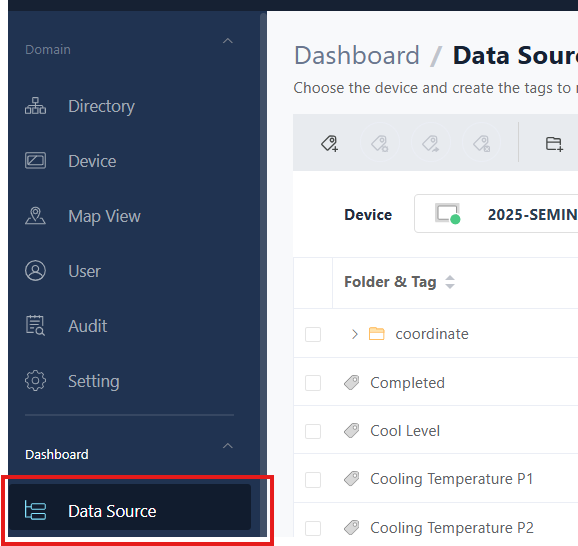
1. Go to Dashboard on the left side and click Data Source.
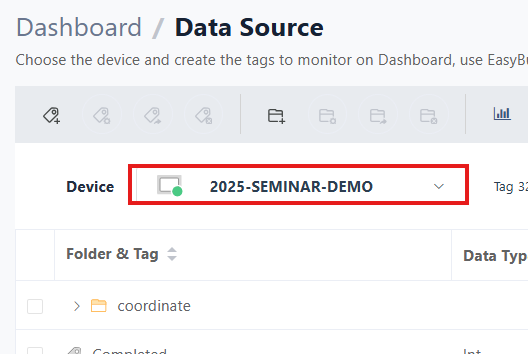
2. Select the HMI for which you want to generate a report.
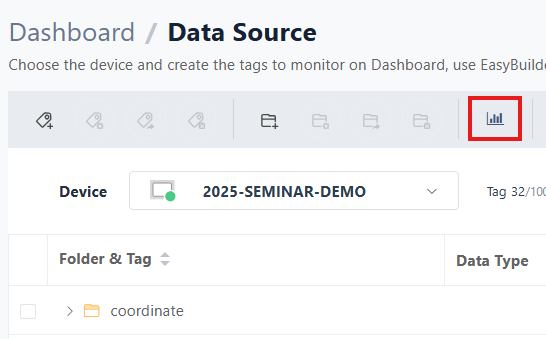
3. Click the SmartReport icon at the top.
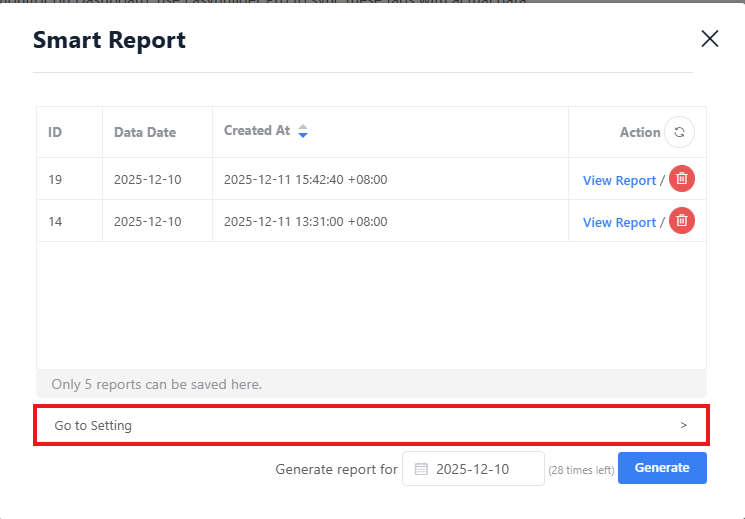
4. When the Smart Report window appears, click Go to Setting at the bottom.
5. To generate an AI default report prompt, click the magic wand icon.
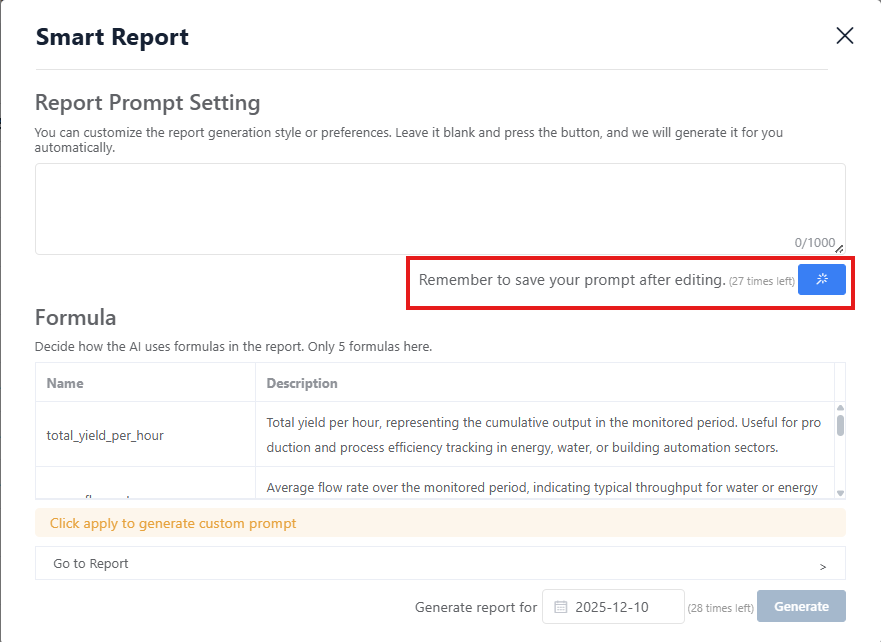
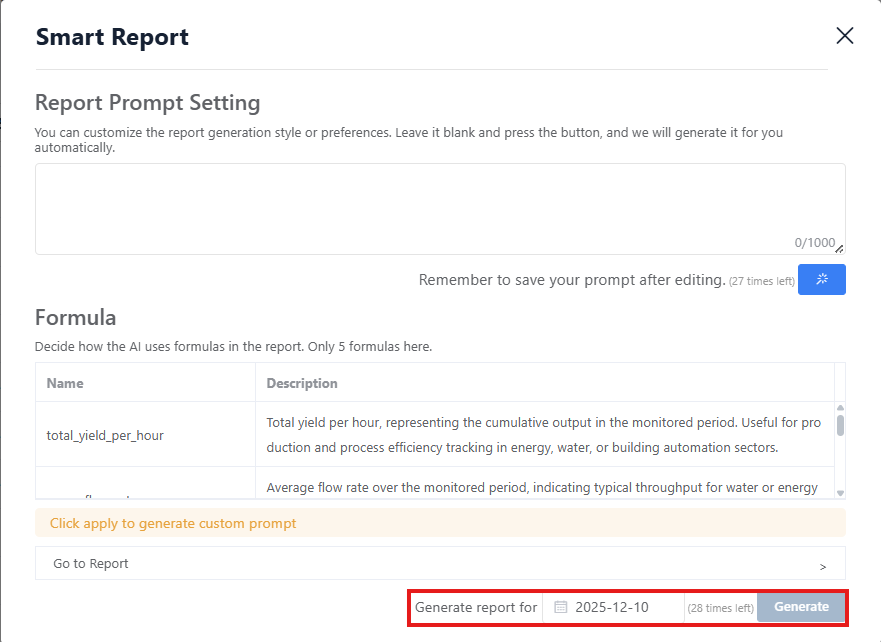
6. After the report prompt and formulas are generated, select the data date at the bottom, then click Generate.
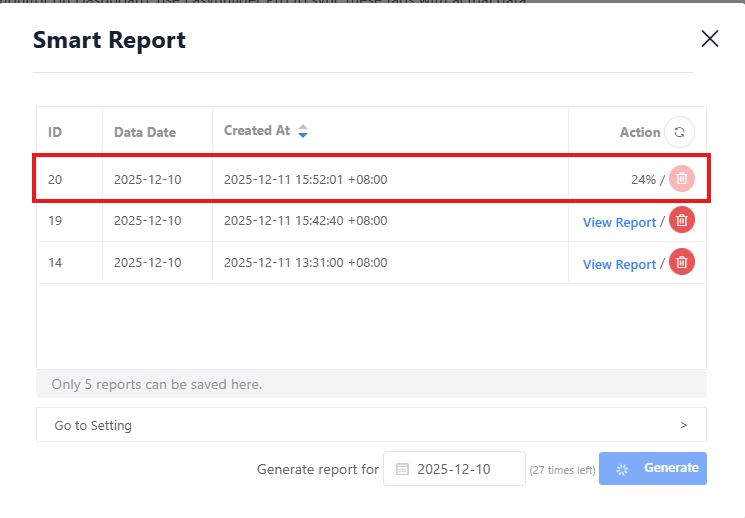
7. You will be redirected to the report list, where you can view the report generation progress.
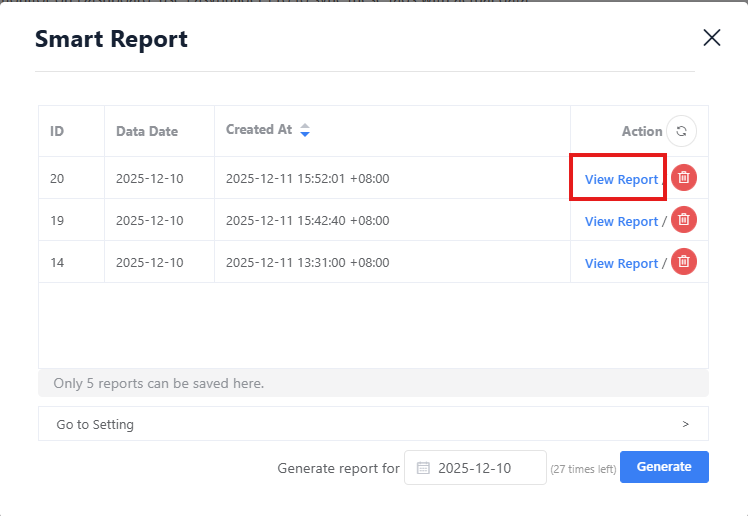
8. Once completed, click View Report to review the report content.
Report Format
Basic Information
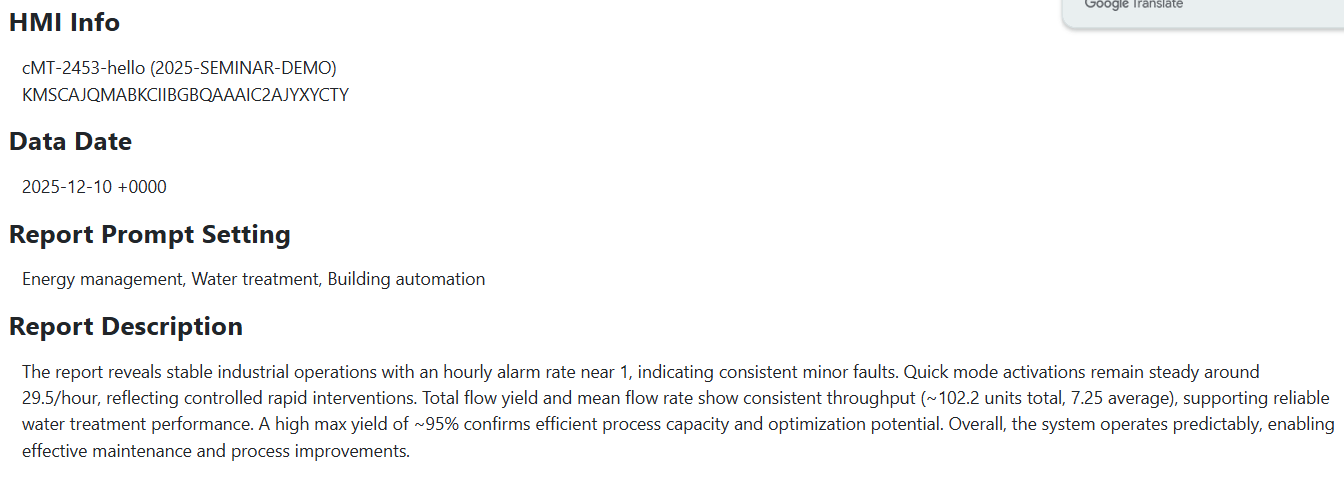
1. HMI Information
Displays the HMI name and alias.
2. Data Date
Shows the date of the data referenced by the report. Time zone is fixed at UTC+0.
3. Report Prompt Setting
Displays the report prompt used to generate this report.
4. Report Description
A brief AI-generated summary based on the overall report content.
Report Content
Each section represents one formula and its corresponding chart or result.
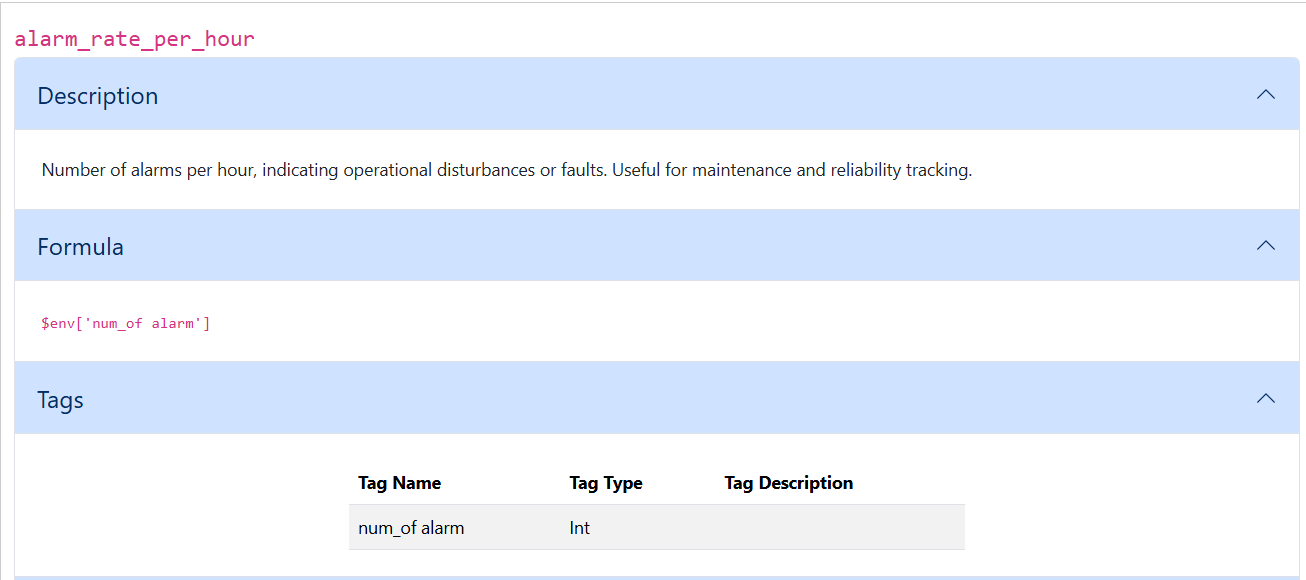
1. Title and Description
Explains the purpose of the formula and the data it references.
2. Formula
Shows the mathematical formula, including referenced tags and operations.
3. Tags
Lists all tags used by the formula.
4. Result
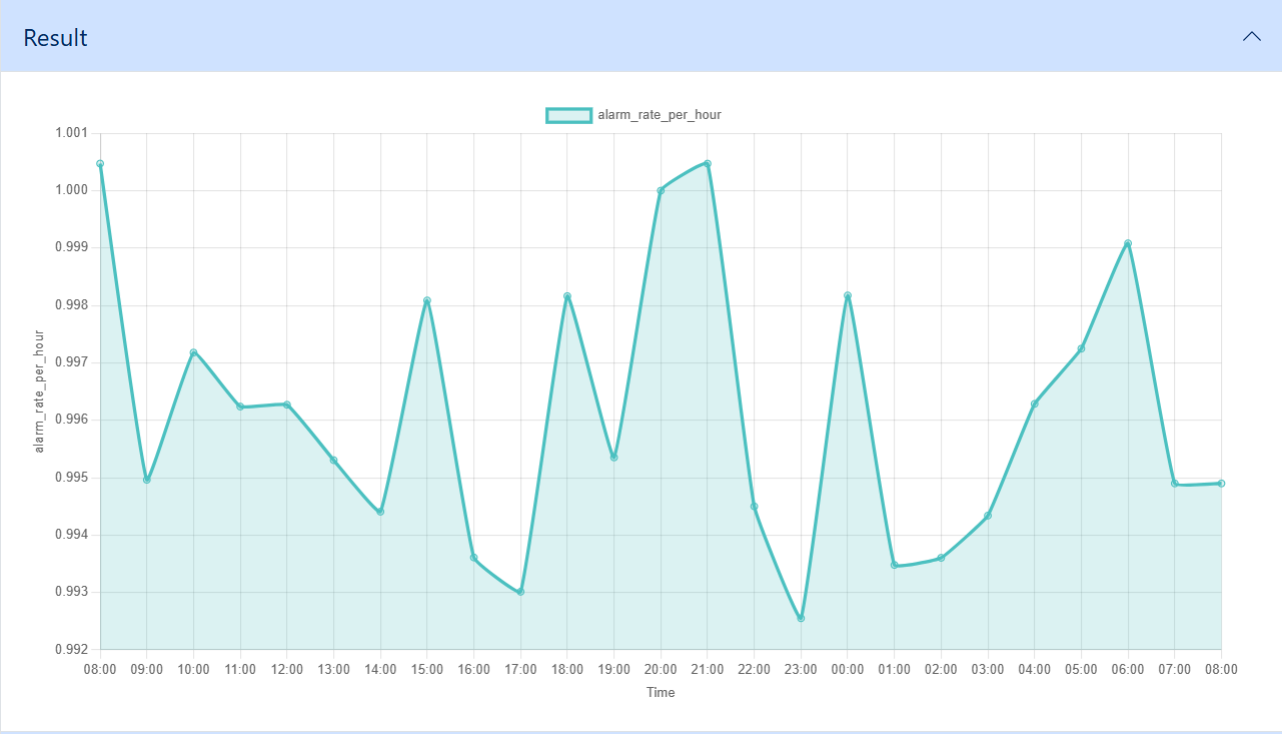
The output is displayed as a line chart, a bar chart, or a single calculated value.
5. Recommendations and Summary
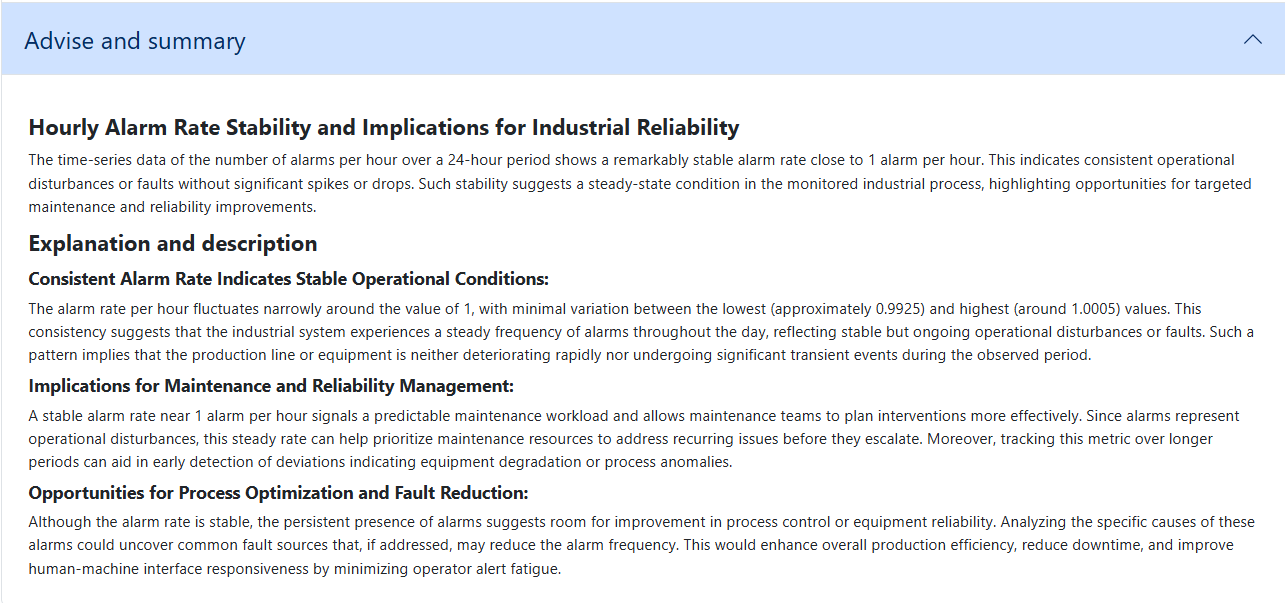
AI provides a detailed interpretation of the data, highlights key findings, and suggests potential improvements or actionable insights for operations, planning, or optimization.
Notes and Limitations
Report Time Range
Reports are generated on a single-day basis using the UTC+0 time zone. For example, selecting 2025-12-10 includes data from: 2025-12-10 00:00:00 ~ 2025-12-11 00:00:00.
The HMI must have at least one tag with history logging enabled.
Since Smart Report analyzes 24 hours of historical data, reports cannot be generated without historical records.
Supported Tag Types
The supported tag types are Int, Float, Boolean, while String is not supported.
Report Prompt Screening
Although Weincloud allows custom report prompts, they are subject to content security screening and filtering. As a result, minor adjustments may be applied after a report prompt is updated.
Maximum prompt length: 1000 characters.
Report Storage Limit is 5 Reports
Each HMI can store up to 5 reports. To generate a new report, an existing report must be deleted first.
Generation Limits
Each HMI is provided with the following usage limits upon first use:
- 30 report generations with no time restriction
- After these are used, the limit changes to 3 report generations per 24 hours, and the count resets after 24 hours.
- 30 report prompt creations or modifications with no time restriction
- After these are used, the limit changes to 1 prompt creation or modification per 24 hours, and the count resets after 24 hours.
Formula Limits
Each HMI can generate up to five formulas per report, and formula generation is influenced by the report prompt, tag names, tag types, and tag descriptions.
If the report prompt is modified, all formulas will be re-evaluated and regenerated.
Language Behavior
The report language follows the current user interface language at the time of generation; for example, a report prompt created in English remains in English, but if the interface language is switched to Traditional Chinese (zh-TW) before generating the report, the report output will be in zh-TW, and once generated, the report language cannot be changed.