Device Management
Overview
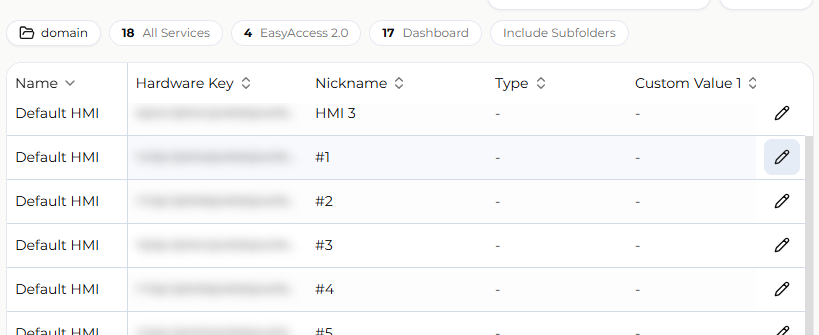
The Device Management page gives administrators a unified view for monitoring and managing all HMI devices within their domain. Devices are organized in a folder hierarchy, and the page combines search, filtering, sorting, column customization, and multiple view modes to help administrators quickly locate, compare, and maintain target devices even in large fleets.
Use Cases
Intended for: administrators with domain management privileges who need to monitor and maintain the HMI devices under their control.
Typical scenarios:
- Reviewing the device list and service activation status within a specific folder (project or site)
- Locating a specific device quickly through search or filters
- Updating a device's nickname or custom fields for easier identification and categorization
- Jumping from the device list directly to the Directory, Data Source, or WebConnect pages
Breadcrumb Navigation
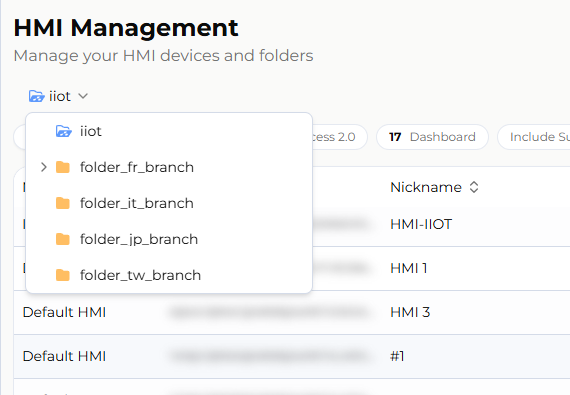
The Device Management page represents each device's domain and folder location as a hierarchy, and the breadcrumb bar shows the current path within that hierarchy.
How it works:
- Clicking any node in the breadcrumb switches to that level and updates the device list accordingly
- Clicking the expand icon next to a node lists sibling folders (or the domain root) at the same level, allowing a quick switch without navigating up and down the tree
The root node label defaults to the domain name of the currently signed-in account.
Search and Filters
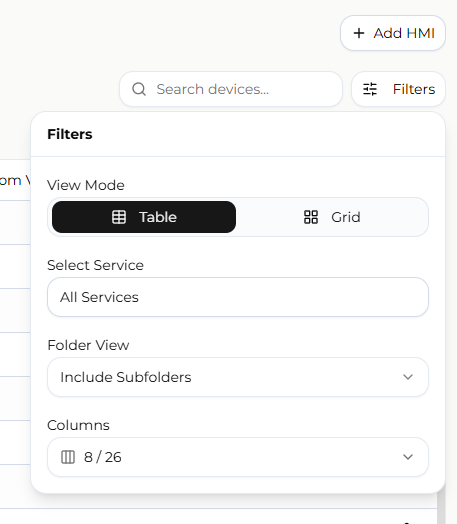
To help locate devices quickly within a large fleet, the page provides the following filtering mechanisms:
- Search box: matches device name, nickname, and hardware key (hw_key) as you type
- Service filter: filters devices by activated service type — "All," "EasyAccess," or "Dashboard"
- Folder scope filter: shows devices in the "current folder" only, or "including all subfolders"
These filters apply together with the folder scope selected in the breadcrumb navigation to determine which devices appear in the list.
Column Display Settings
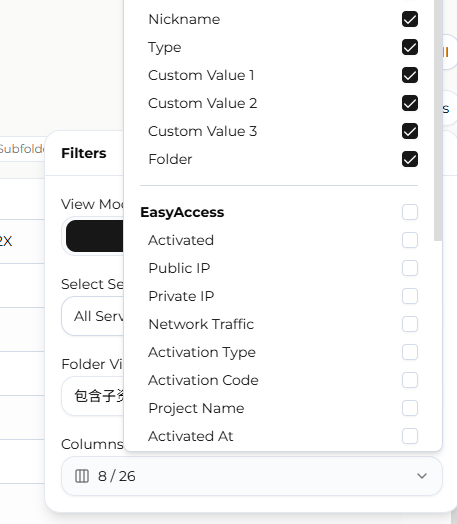
The "Select Column" menu at the top of the page lets administrators choose which columns to display. Columns are grouped into three categories:
- General: Name, Hardware Key, Nickname, Type, Custom Value 1/2/3, Folder (Name is a required column and cannot be deselected)
- EasyAccess: Activation Status, Public/Private IP, Network Traffic, Activation Type, Activation Code, Project Name, Activated/Created/Updated At, and others
- Dashboard: Status, Trial Status, State Updated At, Expired At, Used Tag Count/History Tag Count, Max Tag Count/Max History Tag Count, and others
The EasyAccess and Dashboard column groups only appear in the menu when the current folder contains at least one device with the corresponding service activated. Each group also provides a "select all / deselect all" shortcut.
Column order is fixed and cannot be changed by dragging.
Sorting and Pagination
The list supports column sorting: clicking a column header sorts the list in ascending or descending order by that column. Date columns sort chronologically, numeric columns sort by value, and all other columns sort alphabetically. The default sort is by Name, descending.
When the list contains many devices, it can be browsed in pages, with a page size of 10, 20, 50, or 100 rows.
View Modes
The device list supports two view modes, Table and Grid:
- Table view: presents devices as rows, with column widths that can be resized manually by dragging
- Grid view: presents devices as cards, with a one-click option to copy the hardware key (hw_key) to the clipboard
On mobile devices, the view is locked to Table and cannot be switched to Grid.
Summary Bar
The top of the page displays a summary of devices within the current folder scope, including the total device count and the counts of devices with EasyAccess or Dashboard activated, reflecting the currently applied filters. This gives administrators a quick overview of device distribution.
Add HMI
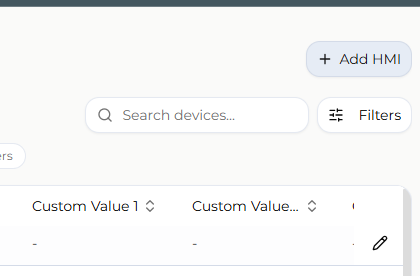
Clicking the "Add HMI" button redirects to the Directory page and opens the Add HMI dialog:
If a folder node is currently selected, the dialog is pre-populated with that folder as the new device's location
If the domain root is currently selected, or the selected node is a single device, the dialog opens without a preselected folder
Edit HMI
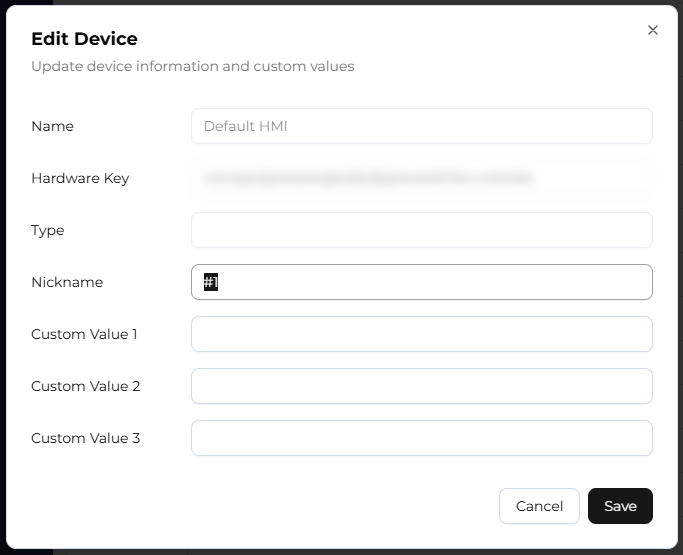
Administrators can edit a device's nickname and its three custom fields (Custom Value 1, 2, and 3). The dialog also displays the device's Name, Hardware Key, and Type as read-only reference information.
Rules:
The nickname and each custom field are limited to 256 characters; exceeding this limit shows a validation error immediately and disables the Save button
All fields may be left blank — none are required
After a successful save, the device list is reloaded and the current selection is restored automatically; no manual page refresh is needed
Right-Click Menu
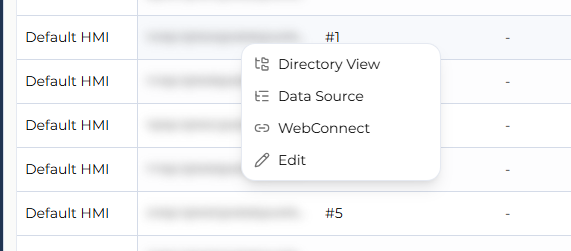
Right-clicking a device in the list opens a shortcut menu with the following options:
- Directory View: navigates to the Directory page to view the device's details and user permissions
- Data Source: navigates to the Data Source page to view the device's data register information
- WebConnect: opens the WebConnect page in a new tab to view the device's service status and network configuration
- Edit: opens the Edit HMI dialog — identical in function to the Edit button in the table
Limitations and Notes
- Column display supports show/hide only; custom column ordering is not supported
- The Name column is always displayed and cannot be deselected
- The nickname and custom fields (1, 2, 3) are limited to 256 characters
- On mobile devices, the view mode is locked to Table and cannot be switched to Grid
- The EasyAccess and Dashboard column groups only appear in the column menu when the current folder has at least one device with the corresponding service activated
- Whether Add HMI pre-populates a folder depends on the type of node (folder or device) selected at the time