Data Source
Overview
The Data Source page is where the Dashboard manages device value tags. Users first create tags for each HMI on the Data Source page, then synchronize the tag data in the EasyBuilder Pro project and pair each tag with its corresponding device address. Once these steps are completed, when the HMI connects to the Weincloud server, device values are uploaded through the tags and displayed on both the Data Source page and dashboard projects.
Besides adding and configuring tags, the Data Source page also provides tag copying, import/export, backup, live value writing, historical data clearing, and trend analysis.
Intended Users and Use Cases
- Users with management permission: can perform management actions such as adding, deleting, or moving tags, copying tags, importing/exporting, backing up, clearing historical data, and editing live values, provided any of the following conditions is met:
- The account is a Domain Superuser;
- The account has global Dashboard management permission;
- The HMI's permission settings have granted Dashboard management permission to the current account.
- General viewers: can browse live tag values and trend analysis, but cannot perform the management actions above.
- Typical scenarios: designing tags on a simulated HMI early in project design; copying or importing existing tags after adding a physical HMI; periodically backing up tag history; tracking abnormal values through trend analysis.
Feature Details
Prerequisite: Designing Tags with a Simulated HMI
Every Domain provides 3 simulated HMIs shared by all users, which can be used to design address tags before a physical device is available. Once the design is complete, use the [Import/Export Tags] function to synchronize the tag data to physical HMIs and dashboard projects added later, speeding up project design.
- Simulated HMIs do not provide historical data functionality, and do not support tag subscription or backup.
Adding Folders and Tags
On the Data Source page, after selecting an HMI, you can add folders and tags for it. When adding a tag, you can set its data type, whether its value can be modified, whether its historical data is stored, and the interval at which its value is updated.
- Folder and tag names are limited to 32 characters; tag descriptions are limited to 64 characters.
- The number of tags that can be created per HMI depends on the Dashboard Subscription plan.
Data Type: Boolean, Int, Float, or String.
Multiplier: Multiplies the raw value by a specified factor (available only for Int and Float types).
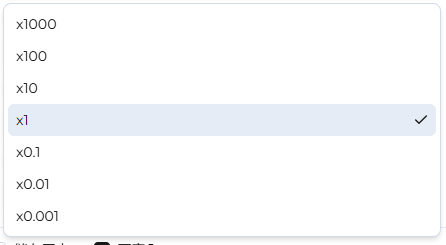
Decimal Point Position: Forces the raw value to display with a specified number of decimal places, up to 5 (available only for Int and Float types).
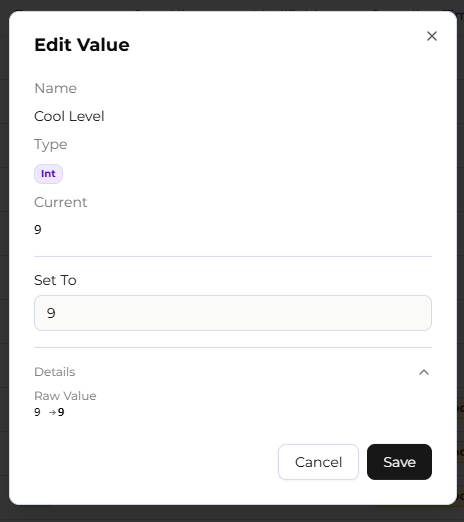
Upper and Lower Limits: Restricts the range of values that can be entered when modifying the value through Weincloud (available only for Int and Float types).
History: Sets whether the tag's historical data is saved on the Weincloud server. The number of tags whose history can be saved depends on the Dashboard Subscription plan, and data is retained on the server for one year.
Modifiable: Sets whether the tag's value can be modified through Weincloud.
Interval: Sets how often the tag value is updated. The dropdown offers 12 fixed options: Quick Mode, and 5, 10, 15, 20, 25, 30, and 35 seconds, and 1, 5, 10, and 15 minutes. When Quick Mode is selected, the HMI updates the value at the shortest interval it can achieve, refreshing as quickly as possible even under poor network conditions or other external factors. When a tag is set to store historical records, the storage interval for historical data is fixed at 1 minute, ensuring important data is still captured reliably even in Quick Mode.
Tag Edit History (Operation Log)
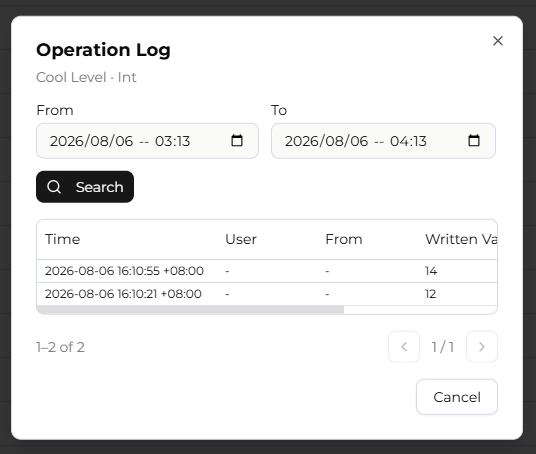
After adding or modifying tags, you can review past edits through the [Operation Log].
- A single query can cover a time range of up to 3 days.
Viewing Live Values and Editing Tag Values
The Data Source page displays each tag's current value and online/offline status in real time. Users with management permission can edit the value of a writable (modifiable) tag directly on the page; the system converts and validates the input against the tag's configured multiplier, decimal point position, and upper/lower limits to prevent out-of-range writes.
Clearing Historical Data
For tags configured to store historical data, you can clear their history for a specific time range (or for all data). Before clearing, you can preview the number of records to be removed and confirm before proceeding.
Trend Analysis
After selecting tags (up to 5 at a time), click the [Analyze Data] icon to examine tag data in more depth using trend charts, historical data tables, and other views. For detailed usage, see the Analyze Data documentation.
Smart Report Entry Point
The Data Source page also provides an entry point into [Smart Report], which generates reports from tag data. For detailed usage, see the Smart Report documentation.
- Smart Report is not supported on simulated HMIs.
Customizing Displayed Columns
You can toggle which columns are shown on the page as needed, including data type, tag description, multiplier, decimal point position, upper limit, lower limit, history, modifiable, interval, status, HMI time, and value, displaying only the information you need when managing a large number of tags.
- The tag name column is always shown and cannot be hidden.
Copying Tags
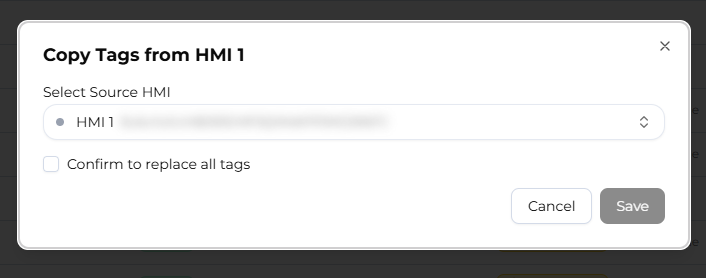
On the Data Source page, after selecting an HMI, you can copy tags from another HMI into the currently selected HMI.
- Selecting [Confirm to replace all tags] clears the existing tags on the current HMI.
- The system also checks the target HMI's remaining live-reporting and historical-storage tag quotas; if copying would exceed the quota, that copy operation is blocked.
Importing and Exporting Tags
- Exporting tags produces a CSV backup that can be edited in bulk afterward as needed; when exporting, you can choose the delimiter to use, currently
,,;, or[tab]. - When importing tags, the system automatically detects the delimiter used in the CSV file; if an imported tag's name conflicts with an existing tag, that record is treated as a conflict and skipped automatically, without overwriting the existing tag.
- The system checks each imported record against the target HMI's remaining tag quota; any row that would exceed the quota is excluded from the import.
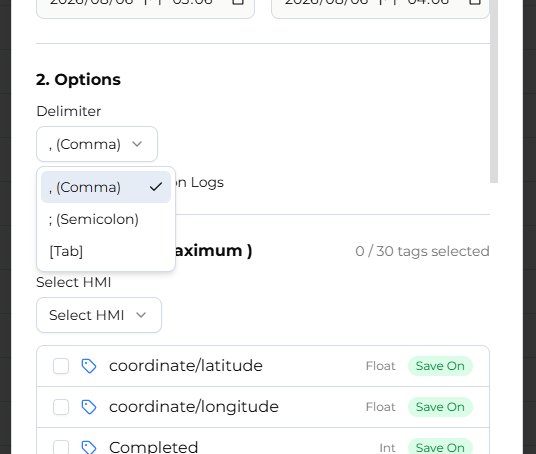
Backing Up Tag Data
- Up to 30 tags can be backed up at a time, and backups for different HMIs can be run simultaneously.
- A single query can cover a time range of up to 3 months.
- You can choose whether to include the operation log in the backup.
- You can choose the delimiter to use, currently
,,;, or[tab].
Limitations and Notes
- Folder and tag names are limited to 32 characters; tag descriptions are limited to 64 characters.
- A tag's decimal point position is limited to 5 places (Int and Float types only).
- The tag update interval offers 12 fixed options, ranging from Quick Mode to 15 minutes.
- The number of tags whose history can be saved depends on the Dashboard Subscription plan; data is retained for one year.
- A single Operation Log query can cover up to 3 days.
- Trend analysis supports selecting up to 5 tags at a time.
- A single backup covers up to 30 tags and a time range of up to 3 months.
- Both copying and importing tags check the target HMI's tag quota; any portion that exceeds the quota is not written.
- Simulated HMIs do not provide historical data functionality, and do not support tag subscription, backup, or Smart Report.
- Adding, deleting, or moving tags, copying tags, importing/exporting, backing up, clearing historical data, and editing live values all require an account with permission to manage the Dashboard service (a Domain Superuser, an account with global Dashboard management permission, or an account granted Dashboard management permission for that HMI); accounts with view-only permission cannot perform these actions.
FAQ
Q: Why are some action buttons disabled? A: Management actions such as adding, deleting, copying, importing/exporting, backing up, clearing historical data, and editing live values require an account with permission to manage the Dashboard service. Accounts with view-only permission can browse values and trend analysis but cannot perform these actions.
Q: Can a simulated HMI use all Data Source features? A: Simulated HMIs do not provide historical data functionality, so features that depend on historical data (such as clearing historical data or Smart Report) are unavailable; simulated HMIs also do not support tag subscription or backup. Other features such as tag design, copying, and import/export are unaffected.
Q: When copying or importing tags, why do some tags fail to be written? A: The system checks each tag against the target HMI's remaining tag quota; any tag that would exceed the quota is skipped. Check the target HMI's quota limit, or reduce the number of tags you are copying or importing, and try again.