Command-Line Interface (CLI)
Overview
EasyAccess 2.0 provides a command-line interface tool ea20_cli.exe for programmatic control of EasyAccess 2.0 functionalities for automation and scripting:
- Manage HMI connection, VPN, pass-through configuration, and execute batch operations
- Integrate with other tools such as
easydownload_clifor remote project updates - Schedule tasks for automated maintenance and monitoring
Requirements
- Available on Windows only
- EasyAccess 2.0 must be running when ea20_cli.exe is used
- CLI feature must be enabled in EA2.0 app settings
Installation
ea20_cli.exe is automatically installed with EasyAccess 2.0 application. You will find both EasyAccess 2.0.exe and ea20_cli.exe in the installation directory.
Enabling CLI
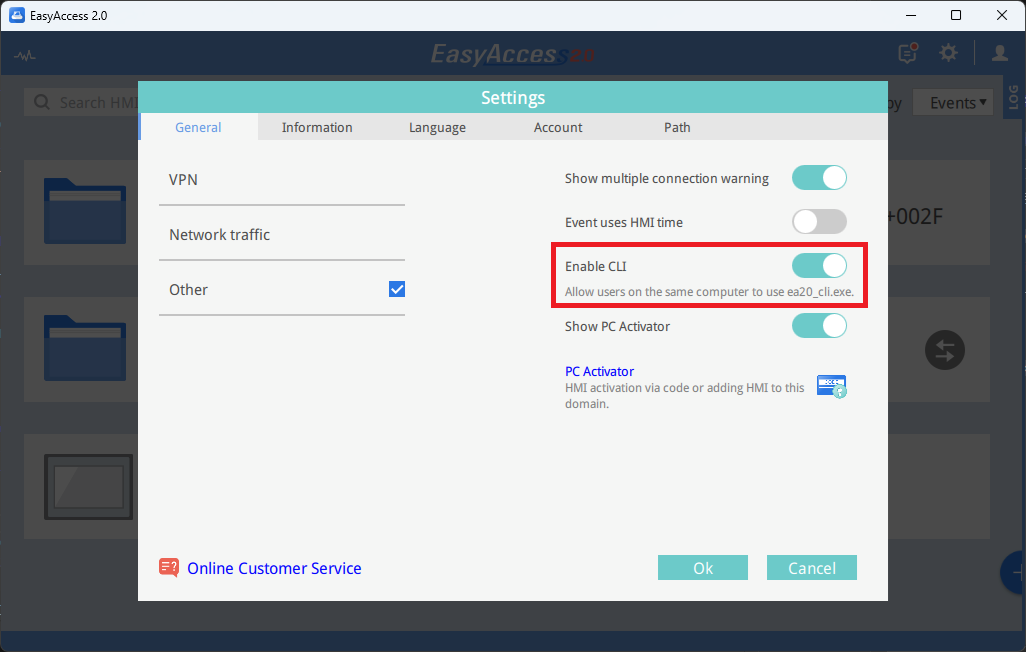
Open the EasyAccess 2.0 application settings, navigate to the General tab, and enable the Enable CLI option.
Command Reference
To view all available commands, run:
ea20_cli.exe --helpAvailable Commands:
| Command | Description |
|---|---|
--show / --hide | Show or hide the EA2.0 application window |
--login <domain> <user> <password> --login-saved | Login with domain credentials or using saved credentials |
--logout | Logout from current session |
--get-current-user | Get currently logged in user information |
--get-hmi-list | Get list of all HMIs in the domain |
--get-hmi <hw_key> | Get detailed information for a specific HMI |
--connect <hw_key> | Connect to an HMI and establish VPN |
--disconnect <hw_key> | Disconnect from an HMI |
--set-hmi-passthrough <hw_key> <ip1> [ip2] ... [ip6] | Configure Ethernet pass-through IPs |
--clear-hmi-passthrough <hw_key> | Clear all pass-through configurations |
Security Notice
Avoid using --login with plaintext passwords in scripts. Instead, use --login-saved after securely saving credentials in the EA2.0 application.
Output Formats
ea20_cli.exe uses two output formats depending on the command:
Simple Text Output
Most commands return simple text responses:
- Success:
success - Error:
error: <error message>
Examples:
success
error: login failed
error: timeout or EA2 CLI not enabled in app settings
JSON Output
Commands that return data use JSON format:
--get-current-user--get-hmi-list--get-hmi
JSON Structure (on success):
{
  "success": true,
  "data": { ... }
}
TIP
When these commands fail, they return simple text output (e.g., error: <message>) instead of JSON.
Exit Codes
| Exit Code | Meaning |
|---|---|
0 | Success |
-1 | Timeout or EA2 CLI not enabled |
-2 | Operation failed (check error message for details) |
All commands return exit codes. Example using --login-saved:
ea20_cli.exe --login-saved
if %ERRORLEVEL% NEQ 0 (
    echo Command failed with exit code: %ERRORLEVEL%
    exit /b 1
)ea20_cli.exe --login-saved
if ($LASTEXITCODE -ne 0) {
Write-Host "Command failed with exit code: $LASTEXITCODE"
exit 1
}Usage Examples
Example 1: Login with Saved Credentials
import subprocess
import sys

result = subprocess.run(["ea20_cli.exe", "--login-saved"], capture_output=True, text=True)
if result.returncode != 0:
    print("Login failed")
    sys.exit(1)
print("Login succeeded")ea20_cli.exe --login-saved
if ($LASTEXITCODE -ne 0) {
Write-Host "Login failed"
exit 1
}
Write-Host "Login succeeded"Example 2: Get Current User Information
CLI Output Example:
ea20_cli.exe --get-current-user{"data":{"domain":"TEST","username":"ADMIN"},"operation":"get_current_user","success":true}import subprocess
import json
result = subprocess.run(["ea20_cli.exe", "--get-current-user"], capture_output=True, text=True)
if result.returncode == 0:
user_info = json.loads(result.stdout)
print(f"Domain: {user_info['data']['domain']}")
print(f"Username: {user_info['data']['username']}")
# Output:
# Domain: TEST
# Username: ADMIN$result = ea20_cli.exe --get-current-user | ConvertFrom-Json
Write-Host "Domain: $($result.data.domain)"
Write-Host "Username: $($result.data.username)"
# Output:
# Domain: TEST
# Username: ADMINExample 3: List All HMIs
CLI Output Example:
ea20_cli.exe --get-hmi-list{
"success": true,
"operation": "get_hmi_list",
"data": [
{"hw_key": "ABCD1234EFGH5678IJKL9012MNOP3456", "is_online": true, "name": "cMT-ABCD", "nickname": "HMI1", "vpn_ip": "", "vpn_state": "disconnected", "vpn_type": ""},
{"hw_key": "WXYZ9876STUV5432PQRS1098LMNO6543", "is_online": false, "name": "cMT-EFGH", "nickname": "HMI2", "vpn_ip": "", "vpn_state": "disconnected", "vpn_type": ""}
]
}import subprocess
import json
result = subprocess.run(["ea20_cli.exe", "--get-hmi-list"], capture_output=True, text=True)
if result.returncode == 0:
hmi_list = json.loads(result.stdout)
for hmi in hmi_list['data']:
print(f"HW Key: {hmi['hw_key']}")
print(f"Nickname: {hmi.get('nickname', 'N/A')}")
print(f"Online: {hmi['is_online']}")
print("-" * 40)
# Output:
# HW Key: ABCD1234EFGH5678IJKL9012MNOP3456
# Nickname: HMI1
# Online: True
# ----------------------------------------
# HW Key: WXYZ9876STUV5432PQRS1098LMNO6543
# Nickname: HMI2
# Online: False
# ----------------------------------------$result = ea20_cli.exe --get-hmi-list | ConvertFrom-Json
foreach ($hmi in $result.data) {
Write-Host "HW Key: $($hmi.hw_key)"
Write-Host "Nickname: $($hmi.nickname)"
Write-Host "Online: $($hmi.is_online)"
Write-Host ("-" * 40)
}
# Output:
# HW Key: ABCD1234EFGH5678IJKL9012MNOP3456
# Nickname: HMI1
# Online: True
# ----------------------------------------
# HW Key: WXYZ9876STUV5432PQRS1098LMNO6543
# Nickname: HMI2
# Online: False
# ----------------------------------------Example 4: Connect to HMI and Get VPN IP
CLI Output (on success):
ea20_cli.exe --connect ABCD1234EFGH5678IJKL9012MNOP345610.7.0.1import subprocess
HW_KEY = "ABCD1234EFGH5678IJKL9012MNOP3456"
result = subprocess.run(["ea20_cli.exe", "--connect", HW_KEY], capture_output=True, text=True)
if result.returncode == 0:
vpn_ip = result.stdout.strip()
print(f"VPN IP: {vpn_ip}")
# Output: VPN IP: 10.7.0.1$HW_KEY = "ABCD1234EFGH5678IJKL9012MNOP3456"
$VPN_IP = ea20_cli.exe --connect $HW_KEY
Write-Host "VPN IP: $VPN_IP"
# Output: VPN IP: 10.7.0.1Now you can use this VPN IP to access the HMI:
- VNC:
10.7.0.1:5900 - FTP:
ftp://10.7.0.1 - HTTP:
http://10.7.0.1
Example 5: Configure Ethernet Pass-through
import subprocess

HW_KEY = "ABCD1234EFGH5678IJKL9012MNOP3456"
PLC_IP = "192.168.1.10"

result = subprocess.run(["ea20_cli.exe", "--set-hmi-passthrough", HW_KEY, PLC_IP],
                       capture_output=True, text=True)
if result.returncode == 0:
    print("Pass-through configured successfully")
subprocess.run(["ping", PLC_IP])$HW_KEY = "ABCD1234EFGH5678IJKL9012MNOP3456"
$PLC_IP = "192.168.1.10"
ea20_cli.exe --set-hmi-passthrough $HW_KEY $PLC_IP
if ($LASTEXITCODE -eq 0) {
Write-Host "Pass-through configured successfully"
ping $PLC_IP
}Complete Example Script
For a comprehensive example demonstrating all EA20-CLI features including error handling, route verification, and connectivity testing, download the complete scripts:
📥 Download ea20_cli_example.py (Python)
📥 Download ea20_cli_example.ps1 (PowerShell)
Usage:
python ea20_cli_example.py <hwkey> <passthrough_ip>

# Example:
python ea20_cli_example.py ABCD1234EFGH5678IJKL9012MNOP3456 192.168.1.10.\ea20_cli_example.ps1 <hwkey> <passthrough_ip>
# Example:
.\ea20_cli_example.ps1 ABCD1234EFGH5678IJKL9012MNOP3456 192.168.1.10These scripts include:
- Login with saved credentials
- User information retrieval
- HMI list enumeration
- VPN connection establishment
- Ethernet pass-through configuration
- Route verification and ping testing
- Proper error handling and output formatting