Data Source Syncronization
Overview
Data Source Synchronization lets you synchronize tags created on the Weincloud Dashboard Data Source page into the currently open EasyBuilder Pro project, and automatically highlights the differences between the two. After synchronization, you can enable the synced tags in the EasyBuilder Pro project, map them to device addresses, and download the project to the HMI to start uploading data.
Intended Use
- Users who have added or modified tags on the Data Source page and need to bring these changes into the EasyBuilder Pro project to continue with device address mapping and download.
- Users who need to check whether the tags on Dashboard and the tags in the current EasyBuilder Pro project are consistent (i.e., whether any tags were added or removed).
Details
Prerequisites
- The tags to be synchronized have already been created or modified on the Data Source page.
Steps
On the Dashboard page in EasyBuilder Pro, click the [Sync…] button to open the Weincloud Sync window.
Click the [Refresh] button to retrieve the HMI list.
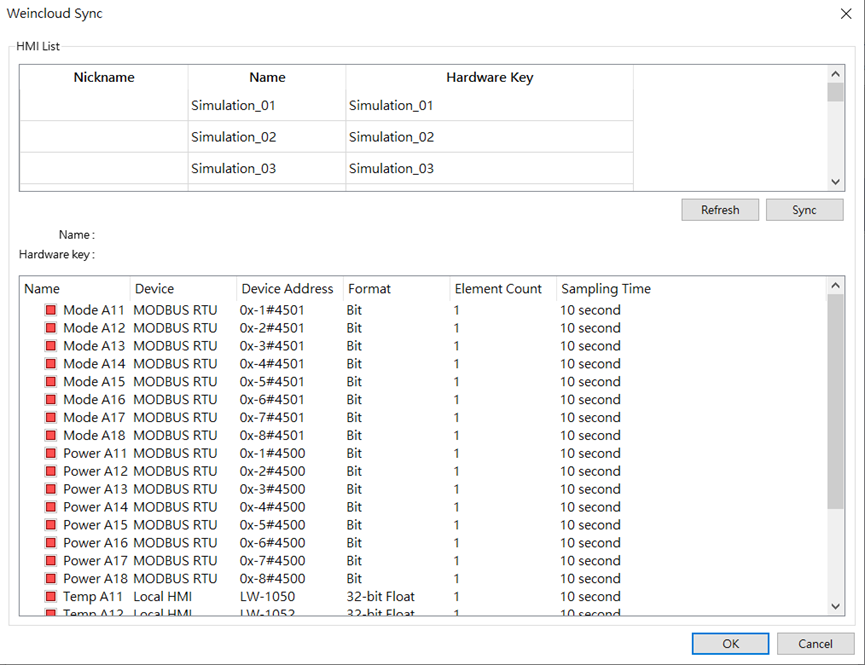
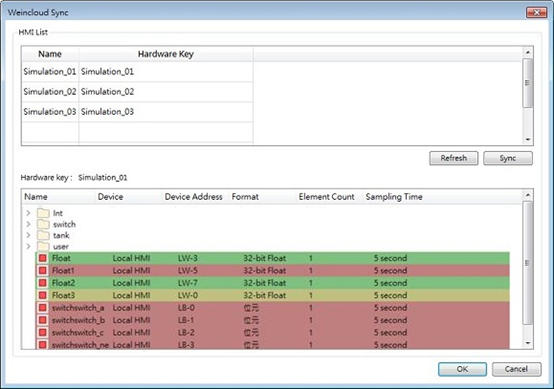
In the HMI list, select the HMI whose tags you want to synchronize, then click the [Sync] button. The tags configured for this HMI on the Data Source page are compared with the tags currently in the EasyBuilder Pro project, and the differences are highlighted by background color:
- Yellow background: tags that exist on Dashboard but not in the EasyBuilder Pro project. These tags will be added to the project.
- Red background: tags that no longer exist on Dashboard but still exist in the EasyBuilder Pro project. These tags will be deleted from the project.
After reviewing the synchronization details, click [OK] to apply the changes.
Result
The synchronized tags appear in the node fields of the EasyBuilder Pro project.
You need to set the required tags to [Enable] in the node fields and map them to the corresponding device addresses.
After the project is downloaded to the HMI, once the HMI connects to the Weincloud server, the values of the mapped device addresses are uploaded to Weincloud.
Restrictions and Notes
- Clicking [OK] immediately applies the synchronization result (tag additions or deletions); review the differences shown in the Sync window before proceeding.