Setting
[Setting] provides domain-level configuration management, covering three sections: Domain Name, security policy, and login page customization. Each section is saved independently: click [Edit] to enter edit mode, then [Save] to submit changes or [Cancel] to discard them. Uncommitted changes do not take effect.
Domain Name
Display conditions
This section appears only when all three of the following conditions are met. If any one is not met, the section is hidden:
- Signed in with the
adminaccount. - Signed in with a social account.
- The Domain name has never been changed.
Consequently, the section is permanently hidden once the name has been changed, and it does not appear when signing in with a password or with an account other than admin.
The Domain name identifies the Domain and forms its dedicated login URL (see Dedicated Login URL). Each Domain may be renamed only once, so the name should be finalized early during deployment.
Procedure
- In the [Domain Name] section, click [Edit] to open the rename dialog.
- Enter the new name in the [Domain Name] field. The length must be 4 to 32 characters; the current character count is shown at the lower right of the field.
- Click [Submit].
After a successful submission, the site reloads automatically so that the Domain name is updated consistently throughout. The dialog does not respond to the Esc key or to outside clicks before submission, preventing it from closing mid-operation.
Notes
- Renaming a Domain interrupts the EasyAccess 2.0 service and triggers a reconnection. Restoring the connection takes time, so schedule the change during off-peak hours.
- The change is irreversible. Verify the name before submitting.
Security
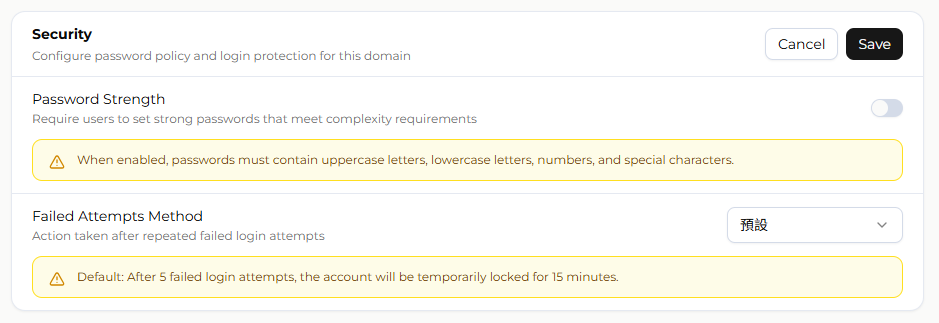
[Security] defines the password policy and failed-login protection. Both settings are domain-level and apply to all users within the Domain.
Password Strength
Controlled by a toggle; the state is shown as [Enabled] or [Disabled]. When enabled, passwords must contain uppercase letters, lowercase letters, numbers, and special characters, and the minimum length increases from 6 to 8 characters.
Existing passwords are not invalidated immediately; they are evaluated at the next sign-in. If a password does not meet the strength requirement, the system displays "Password strength does not meet security requirements. Please change your password immediately." and redirects the user to the password reset page. The user must complete the change before continuing.
Failed Attempts Method
Specifies the action taken after consecutive failed authentication attempts. Passwords and verification codes (OTP) are counted separately against independent thresholds; reaching either threshold locks the account:
| Authentication type | Threshold |
|---|---|
| Password | 20 consecutive failures |
| Verification code (OTP) | 5 consecutive failures |
Once the account is locked, sign-in fails even with the correct password or verification code. How the lock is released is selected from the drop-down list:
| Option | Release |
|---|---|
| [Not set] | No method specified; behaves the same as [Default] |
| [Default] | Locked temporarily for 30 minutes, then released automatically |
| [Stricter] | Remains locked until an administrator releases it |
All three options share the same thresholds; they differ only in whether the lock is released automatically. Leaving the value at [Not set] does not disable lockout protection — the system still applies the [Default] behavior. The description below the field appears only when [Default] or [Stricter] is selected.
Exception for the admin account
The account with the username admin is not subject to the persistent lock of the [Stricter] method. Regardless of the method selected for the Domain, a lock on admin is always temporary — 30 minutes, then released automatically.
For resolution steps after a lockout, see Troubleshooting – Account Locked.
Domain Login Portal
Display condition
This section appears only when signed in with a password. Domains using social account sign-in do not support a customized login page, and the section is not present on the [Setting] page.
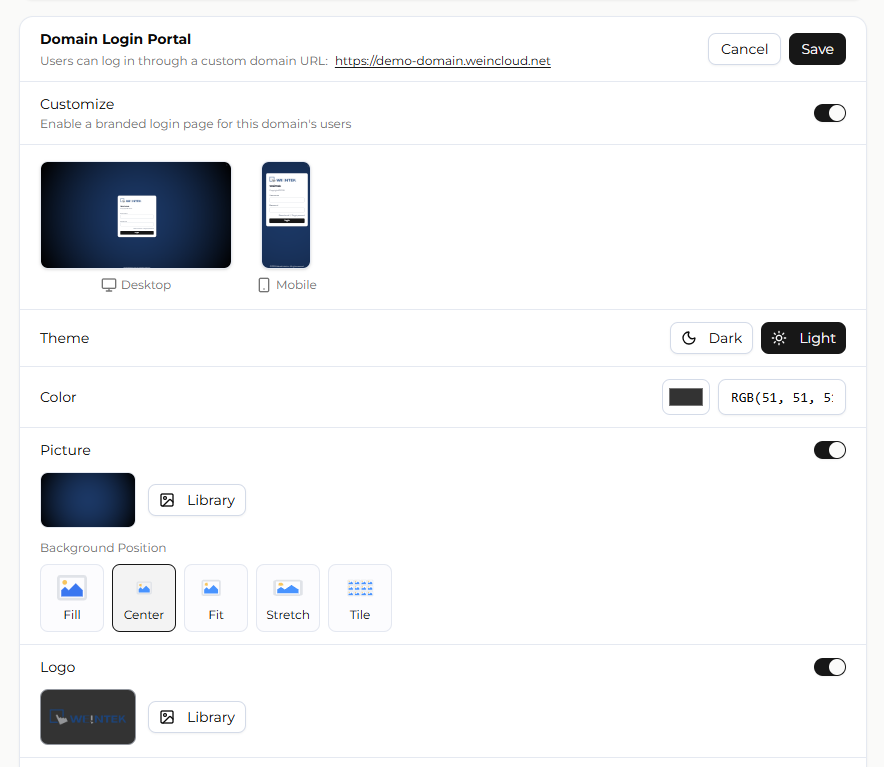
[Domain Login Portal] customizes the appearance of the Domain's dedicated login URL. The configuration applies to every user who signs in through that URL.
Dedicated Login URL
Each Domain has a dedicated login URL in the format https://[domain_name].weincloud.net, where [domain_name] is the Domain name. In the China region, the format is https://[domain_name].weincloud.net.cn. The actual URL of the current Domain is shown below the section title and can be clicked to open.
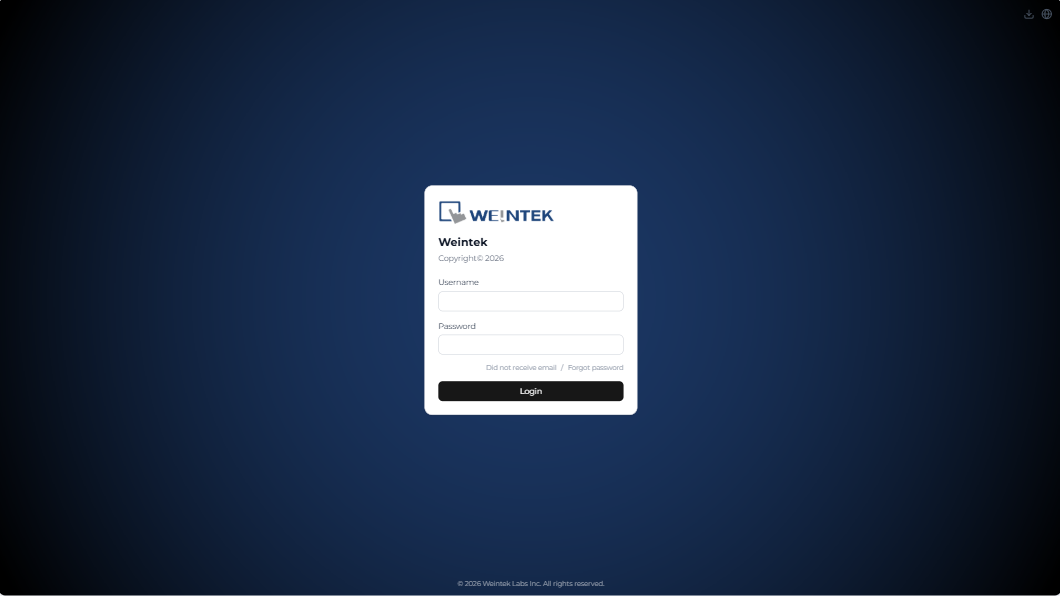
On the login page reached through this URL, users enter only a username and password; no Domain needs to be specified.
Enabling Customization
[Customize] determines whether the customized login page is applied to the users of this Domain. When disabled, all appearance settings below are hidden and the login page retains its default style.
Layout Preview
Once enabled, two previews, [Desktop] and [Mobile], are displayed side by side at the top of the section and reflect the current configuration in real time: pending form values in edit mode, and saved values in read-only mode.
In a desktop browser, click either preview to open an enlarged view; this interaction is disabled when the window width is below 768 px. The preview is a static rendering and is not interactive.
Appearance Options
[Theme]: select either [Dark] or [Light]; the overall color scheme of the login page follows this setting.
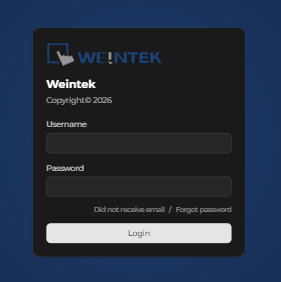
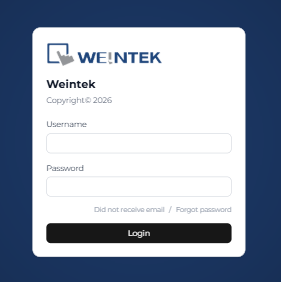
[Color]: specify the page background color using the color picker or a hexadecimal value. The default is
#141D30.[Picture]: enabled by a toggle. Once enabled, select an image from the picture library and specify a [Background Position] fill mode (see Background Fill Modes). The background picture is layered above the background color.
[Logo]: enabled by a toggle. Once enabled, select an image from the picture library; it is rendered above the login card.
[Title]: the main heading of the login card, limited to 20 characters. The default is
Weincloud.[Description]: supplementary text below the main heading, limited to 256 characters. The default is
Access your HMI easily.
Background Fill Modes
| Mode | Rendering |
|---|---|
| [Fill] | Scaled proportionally to cover the layout, overflow cropped, centered |
| [Center] | Kept at original size and centered, neither scaled nor repeated |
| [Fit] | Scaled proportionally to fit entirely within the layout, centered |
| [Stretch] | Stretched non-proportionally to exactly fill the layout; the image may be distorted |
| [Tile] | Kept at original size and tiled from the top-left corner |
Picture Library
The background picture and the logo share the same picture library, whose assets belong to the current Domain. Click [Library] to open the [Picture Library], then perform the following operations:
- Select: each page lists 12 thumbnails and allows one selection at a time. After confirming, click [OK] to apply the image to the setting field.
- Add Image: drag a file onto the dashed area or click [Browse] to choose a file. JPEG, PNG, GIF, and SVG are supported, with a limit of 3 MB per file; SVG files are converted to PNG on upload. After the upload completes, the list jumps to the last page and selects the new image.
- Rename: select an image, then click the [Rename] icon to change its display name.
- Delete: select an image, then click the [Delete] icon; the action runs after a confirmation prompt. Deletion is permanent and cannot be undone.
The picture library states that "Changes will also affect published content." This refers to other places that reference the same Domain picture library, such as Dashboard projects. Before deleting or renaming an image, confirm that it is not referenced elsewhere.
Limitations
| Item | Limit |
|---|---|
| Domain name length | 4 to 32 characters |
| Domain name changes | Once per Domain, irreversible |
| Scope of security settings | Domain level; per-user exceptions are not supported |
| Minimum password length | 6 characters; 8 characters when Password Strength is enabled |
| Failed login lockout thresholds | 20 consecutive password failures; 5 consecutive verification code (OTP) failures |
| Scope of the [Stricter] method | Does not apply to the account with the username admin |
| Title length | 20 characters |
| Description length | 256 characters |
| Image formats | JPEG, PNG, GIF, SVG (SVG converted to PNG) |
| Image file size | 3 MB |
| Image source | Picture library only; external image URLs are not supported |
Changes in every section take effect only after [Save] is clicked. [Cancel] discards unsaved changes; in the [Security] section, cancelling also reloads the values stored on the server.
FAQ
Q: What does the login page look like if [Customize] is enabled but no background picture or logo is configured?
A: The login page applies the selected theme and background color and uses the default title Weincloud and description Access your HMI easily.
Q: Can an external image URL be entered directly as the background or logo?
A: No. The background picture and logo can only be selected from the picture library, so the image must be uploaded to the library first.
Q: How is an account released after being locked by failed login attempts?
A: Under the [Default] method, it is released automatically after 30 minutes. Under the [Stricter] method, an administrator must release it — except for the account with the username admin, which is always released automatically after 30 minutes. Locks triggered by password failures and by verification code (OTP) failures are released the same way.