Pass-through (Ethernet)
EasyAccess 2.0 not only makes possible direct connection to a Weintek HMI, but also provides pass-through function that enables the user to connect to the PLC on the remote HMI’s network. Consider an EasyAccess network as shown below where a PLC is within the same LAN network as the HMI. Here, the PC, by first establishing EasyAccess 2.0 connection to the HMI, may use the HMI as the relay and connect to the PLC as well.
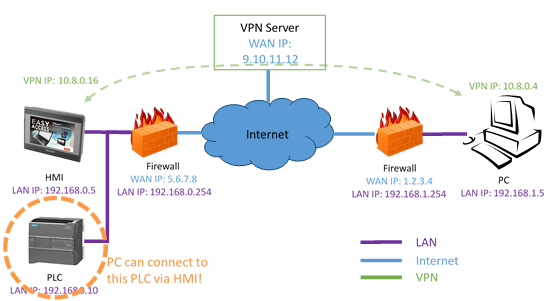
How to setup pass-through to PLC?
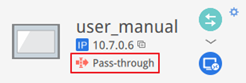
1. On the list of HMI, click on the “Pass-through” icon which appears below the IP address when connection in active.
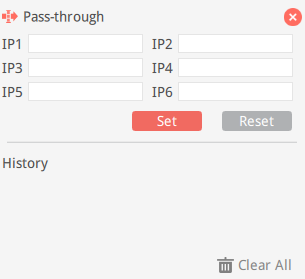
2. Enter the IP address of the target PLC. Support up to 6 IP addresses.
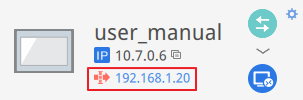
3. Once connected, the IP address of the PLC will be shown. The user may now launch the PLC program.
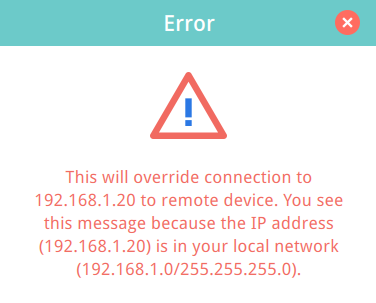
If the remote PLC and the local computer have the same private IP address range, a warning will appear, indicating that subsequent connection to the PLC’s IP address will be directed to the remote device instead of the local device if there is any.
Additionally, Port Forwarding feature allows external networks to directly access corresponding internal devices. Up to six port forwarding configurations are supported.
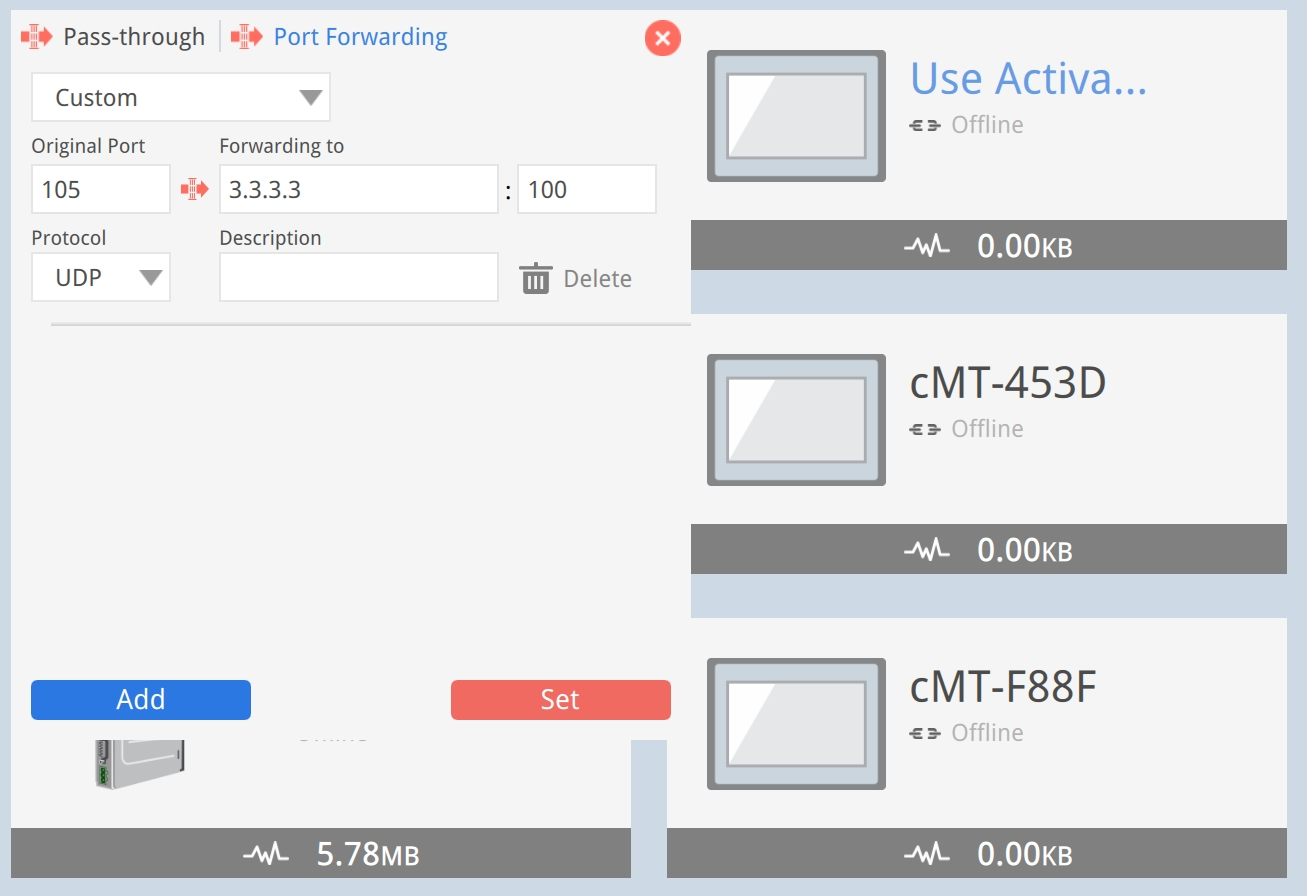
Port forwarding supports three modes:
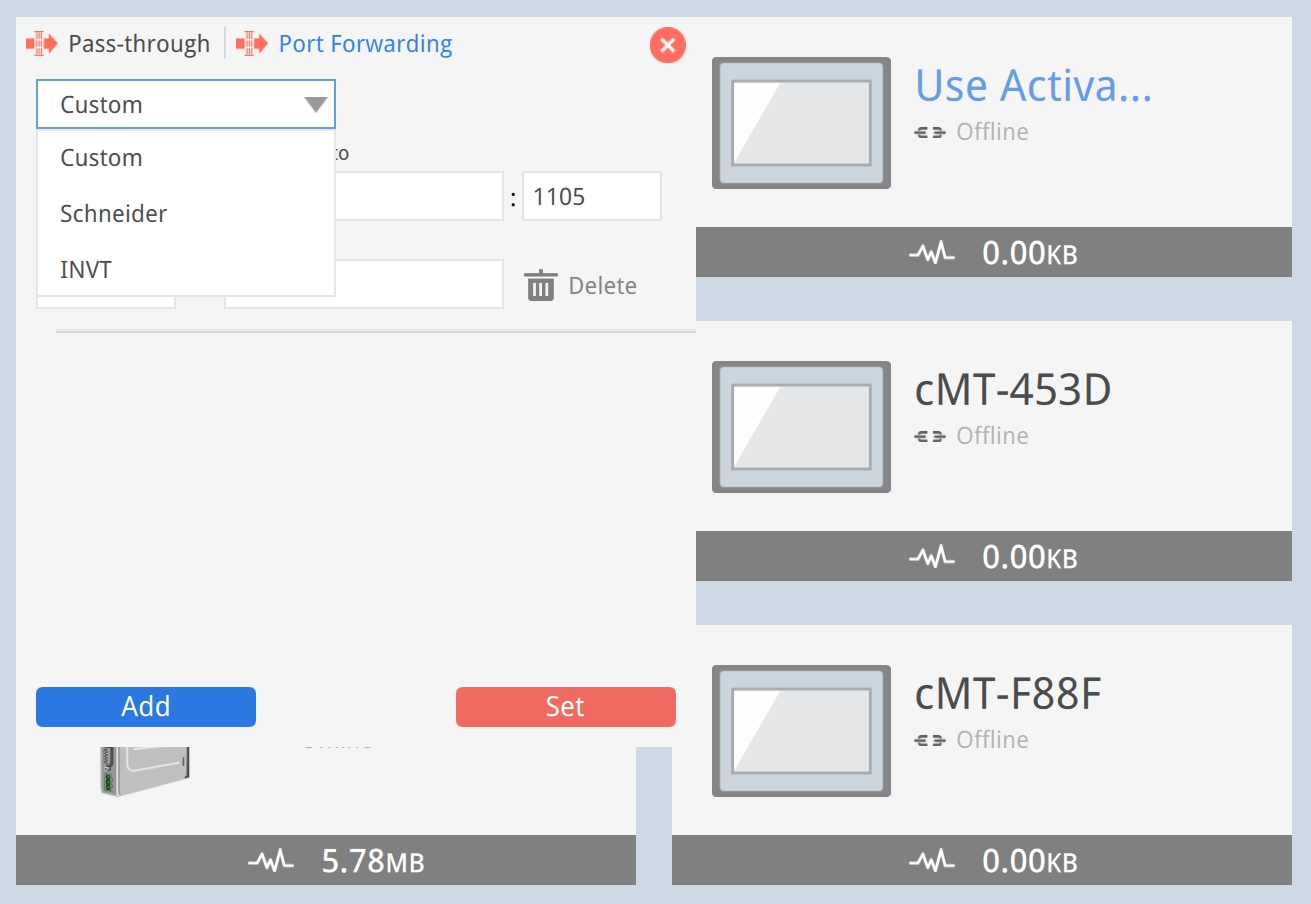
Custom
Freely configure the source port, forwarding IP and port, communication protocol (TCP or UDP), and a description.
Schneider
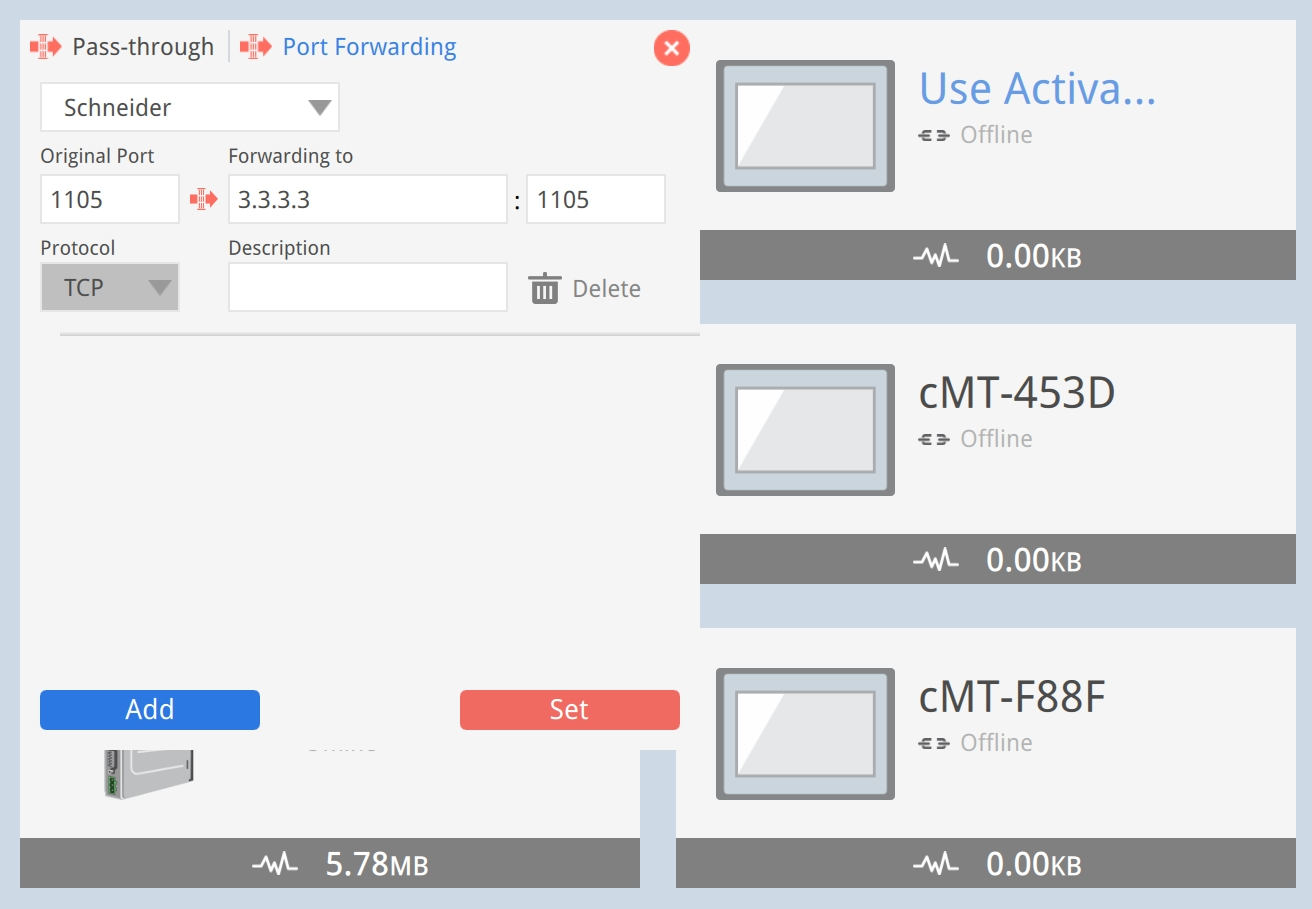
Designed for Schneider software. The port is fixed at 1105 and uses the TCP protocol.
INVT
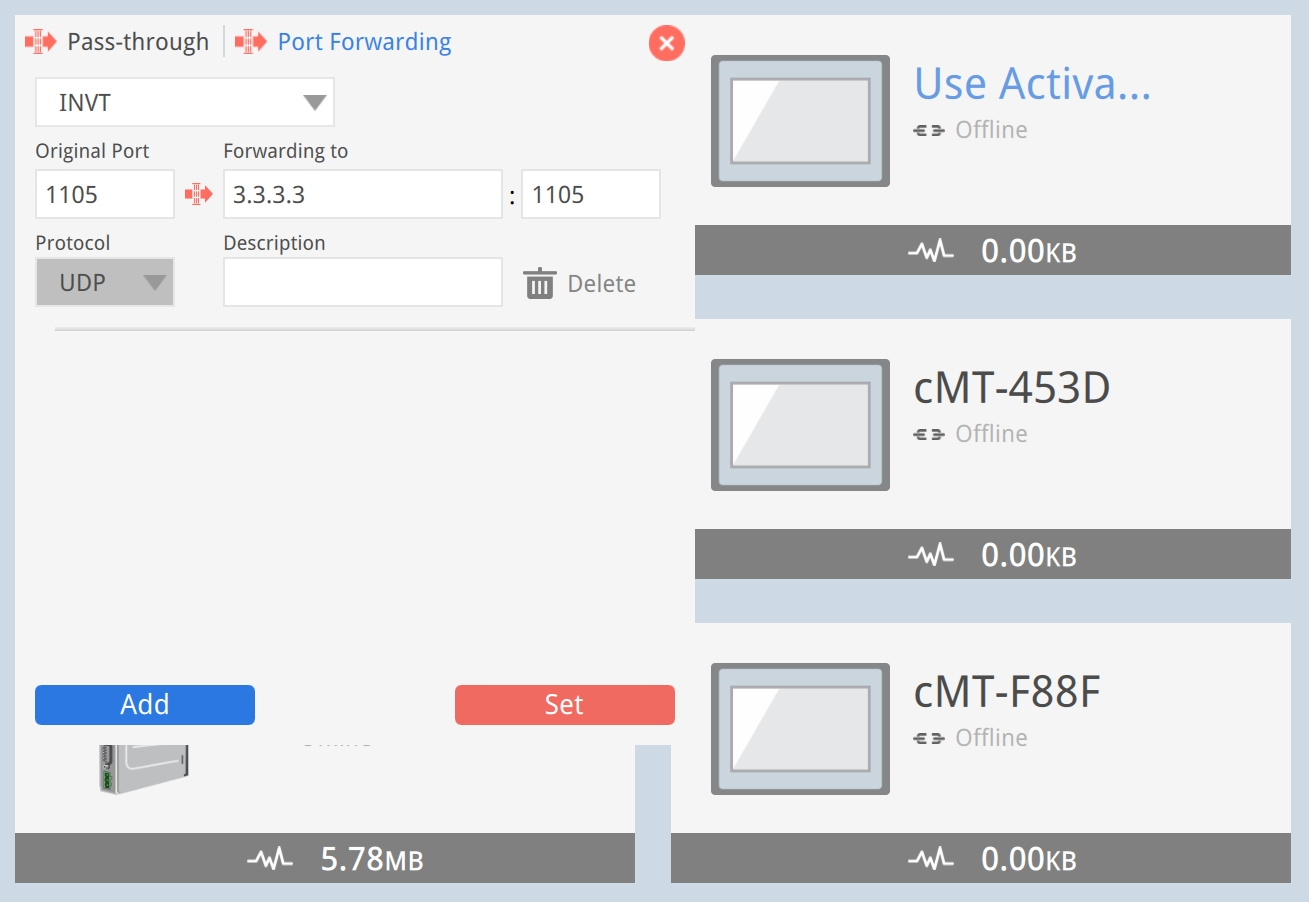
Designed for INVT Workshop software. Uses the UDP protocol exclusively, with the following two limitations:
If a port is changed after INVT Workshop is connected, a 3-minute wait is required.
Scenario:
- Configure pass-through:
:105→192.168.10.10:100 - Connect via VPN and establish a connection using INVT Workshop
- Change the forwarded port from
105to110
Port
105will remain connected until manually disconnected. Wait 3 minutes before connecting via port110.- Configure pass-through:
Only one INVT Workshop connection is allowed per PC at a time. If an INVT Workshop session is already active, no other software or program can connect to the backend device through the same port.