Map View
Map View is a geolocation-based visual management interface that displays HMI devices on a map. It enables administrators to clearly view the status of devices distributed across different locations and perform real-time monitoring and remote connections.
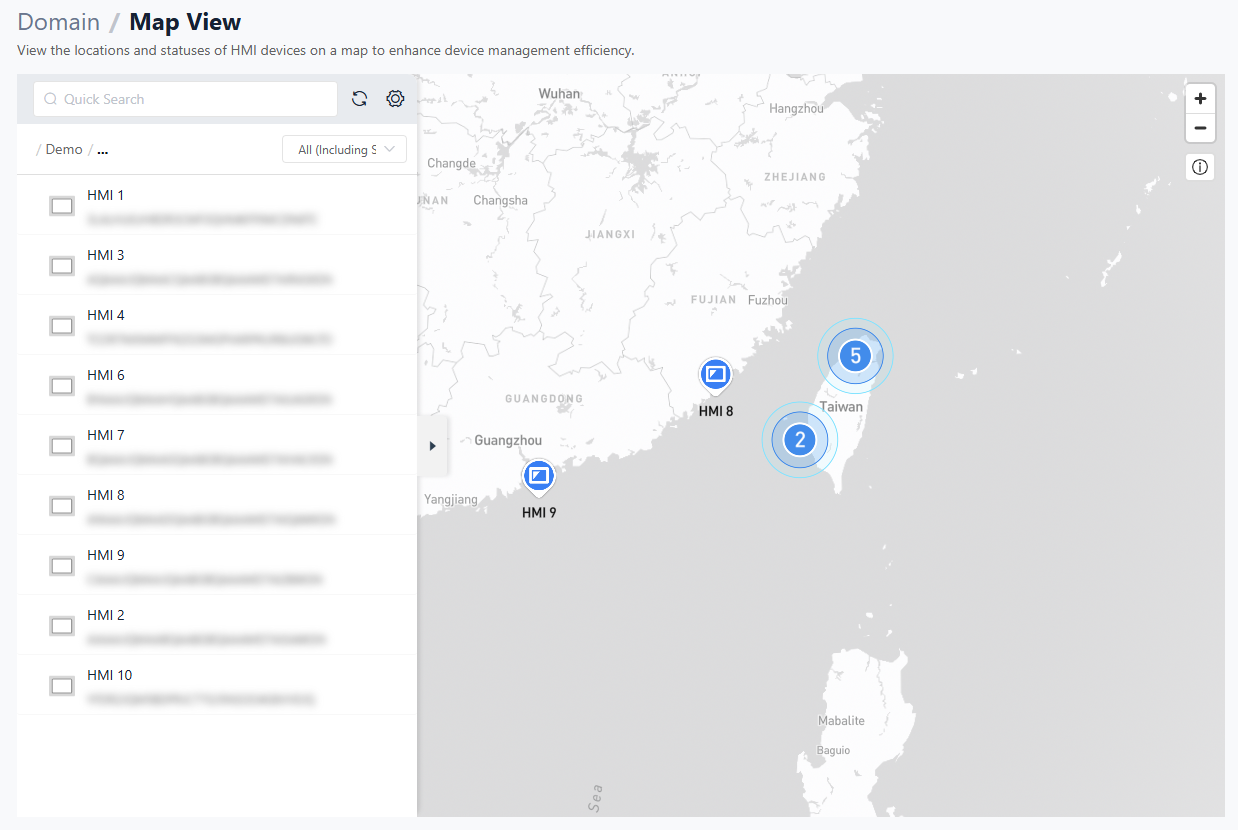
Map View Interface Structure
Map Overview
The map is the core area of this page. It displays all HMI devices with configured latitude and longitude coordinates, helping administrators quickly understand device distribution.
- Display Logic: HMI devices with coordinates set to
(0, 0)are automatically excluded and will not appear on the map. Ensure that valid latitude and longitude values are configured in the Directory or Dashboard settings. - Performance Optimization: The system is optimized to handle large-scale deployments (approximately 500 devices). Map zooming and device repositioning remain smooth, with stable page performance.
Map Settings
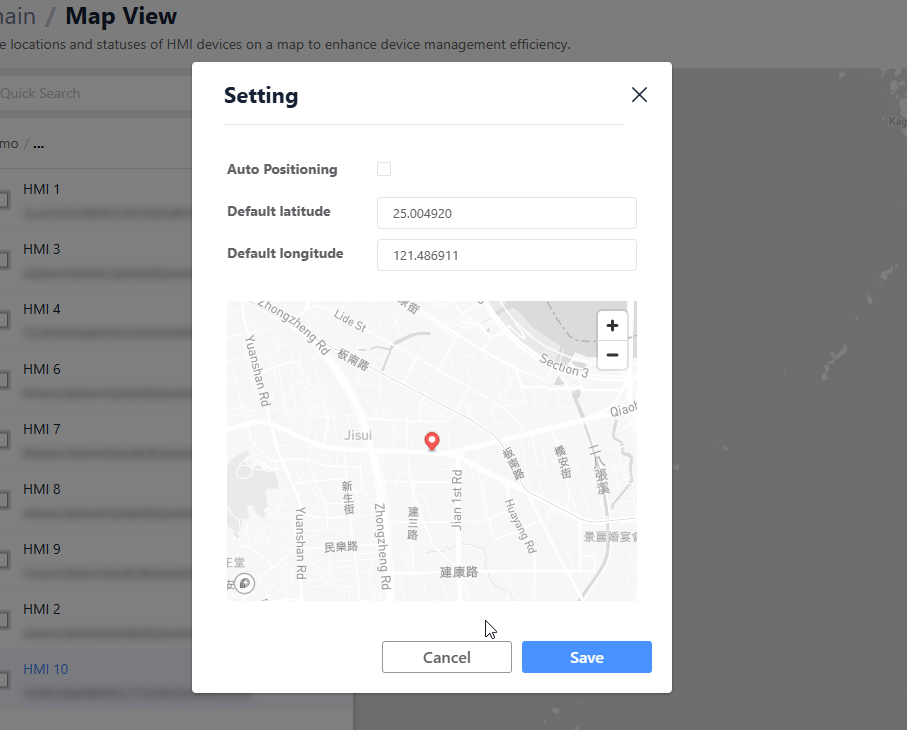
Default Center Point:
- Purpose: Defines the initial map position when the page loads.
- Function: You can specify fixed latitude and longitude coordinates or allow the system to automatically calculate the geometric center of all HMI devices. When the page opens, the map view centers on this location to ensure key areas are immediately visible.
HMI List and Search
The side panel provides an alternative way to locate devices.
- List View: Unlike the folder-based tree structure in the Directory, Map View uses a flat HMI list. This allows faster browsing of all devices without folder-level restrictions.
- Filter: Users can enter keywords to quickly filter and locate specific HMI devices.
Information Panel (Right Sidebar)
When a user clicks an HMI icon on the map or selects a device from the list, a detailed information panel opens on the right.
Basic Information
Displays basic device details such as model, name, and status. The content is consistent with the general information shown in the Directory.
Datasource Monitoring
This section presents HMI data tags in a tree structure and supports real-time monitoring.
- Real-time Data: Tag values are updated and displayed in real time.
- Display Format: Data is shown in the format:
[Tag Name] .... [Current Value]. This layout allows users to read values at a glance.
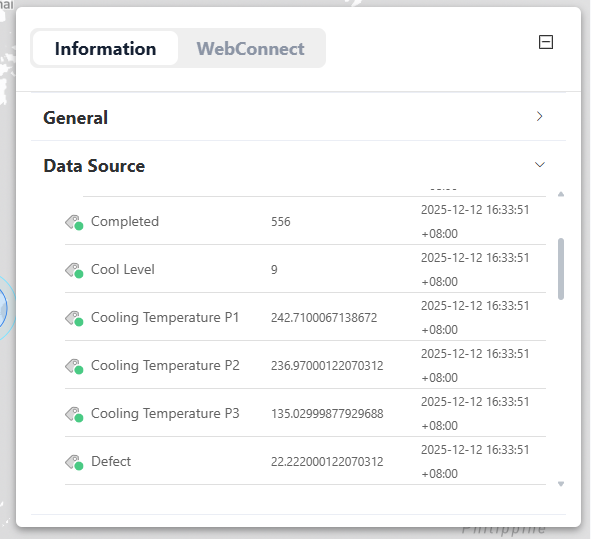
Note: Only HMI devices with an active Dashboard service can use advanced features such as real-time value display, dynamic data, and future expansions. If the Dashboard service is not activated, this section may not display real-time data.
WebConnect Connection
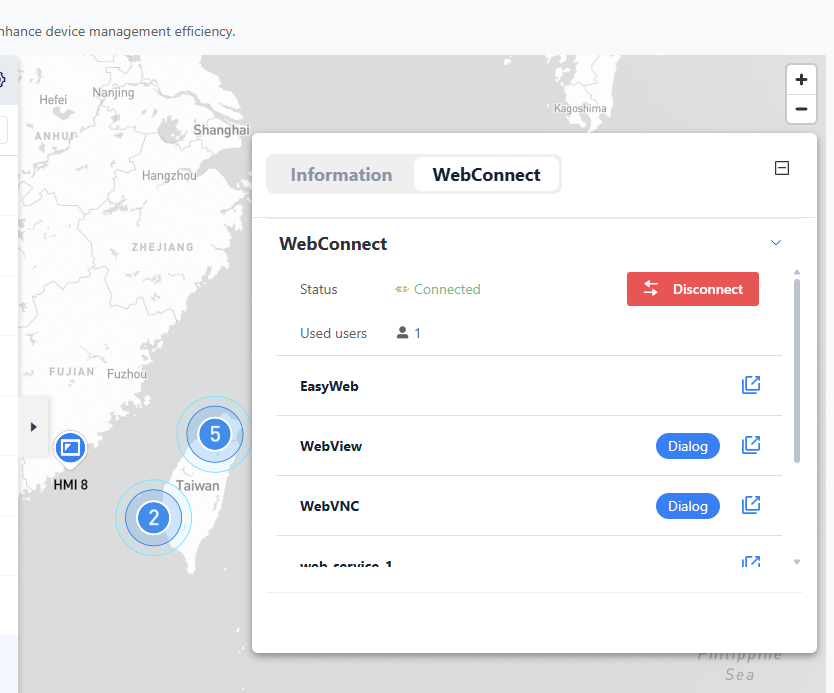
Map View integrates the WebConnect feature of EasyAccess 2.0, allowing users to initiate remote connections directly from the map.
- Connection Button: A WebConnect button is available in the information panel.
- External Window Operation: After clicking the button, a separate WebView dialog window opens. Users can perform VNC monitoring or EasyWeb operations without affecting navigation on the main map.
Limitations and Notes
Dashboard Service Requirements
Some advanced Map View features require Dashboard service support.
- Basic Positioning: All HMIs with configured coordinates can be displayed on the map.
- Advanced Data: Viewing real-time
Datasourcevalues in the information panel requires a valid Dashboard license for the HMI.
Coordinate Settings
If an HMI does not appear on the map, check the following:
- Whether the device has been removed or transferred.
- Whether the latitude and longitude are still set to the default value
(0, 0). Update the coordinates in the Dashboard settings within the Directory.