Social Accounts
The Social Accounts feature provides a centralized interface for managing user accounts linked to external social platforms or communication services, configuring notification delivery mechanisms, and setting up third-party login processes. This helps strengthen the system's real-time communication capabilities and user account flexibility.
Interface Structure and Navigation
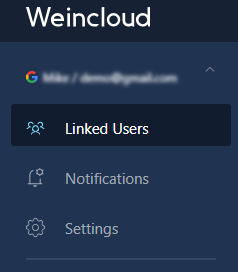
In the system administration interface, the "Social Accounts" option in the left-hand menu includes the following functions:
- Linked Users
- Notifications
- Settings
Linked Users
This page lists all system users who have successfully linked with an external social account service.
- List Content: Displays all users linked with social accounts.
- Management Operations:
- Link: Configure a specified user to link with a social account.
- Unlink: Remove the binding relationship between a specified user and their social account.
Linking Process
- Operation Entry: Click the Link Domain User button or click the Select User icon button in the top right corner of the menu to add a user for linking.
- Successful Binding Notification: Upon successful binding, the system will automatically send a confirmation email to the linked user's registered email address.
- MFA Verification: If the user has enabled Multi-Factor Authentication (MFA), the system will send an additional confirmation email, requiring the user to perform a second confirmation to complete the secure linking process.
Notifications
Notification settings are used to configure how the system sends event alerts or system notifications to users through external channels. It mainly includes two functional modules: Webhooks and HMIs.
1. Webhooks (External Push)
Used to create custom Webhook interfaces to push system events to third-party service endpoints.
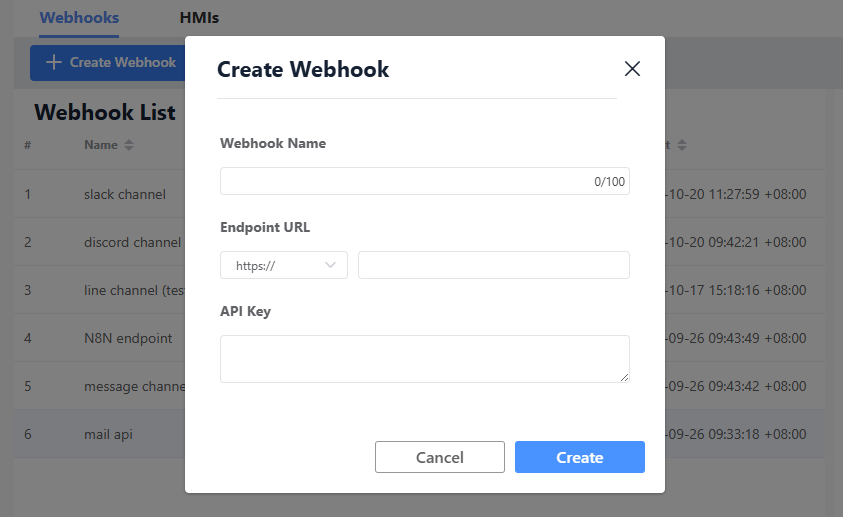
| Field/Function | Description |
|---|---|
| Enabled | Enables or disables the push function for this Webhook. |
| Name | The identifying name of the Webhook. |
| Endpoint URL | The address of the target server that receives the messages. |
| API Key | The security key used for identity verification. |
| Test Message | After creating the Webhook, you can immediately click the button to send a test message to verify if the connection and configuration are successful. |
| Bind HMI | You can configure which HMI devices' event notifications this Webhook subscribes to. |
| Edit/Delete | Supports modification of parameters and removal of already created Webhooks. |
2. HMI Device Notifications
Used to set up the event alert delivery logic for specific HMI devices and bind notification channels.
- Adding Methods:
- Scan QR Code: Allows the administrator to scan a QR Code to add HMI devices belonging to a different Domain to this notification list.
- Add HMI: Add HMI devices from the current Domain for which the user has EasyAccess 2.0 Manage permission.
- Event Editing Items:
- Function Switch: Enables or disables the notification function for this HMI.
- Event Notification Types: The following alert events can be selected and configured:
Event Online/Offline: HMI online/offline event.Event Recover: Device fault clearance or status recovery event.Event Trigger: Specific trigger or alert event.
- Delete Function: Supports the removal of HMI notification configurations from the list.
3. Social Account Settings
- Delete Social Login Information
- Social Login Session Management
- View and manage active login sessions for social accounts.