Grafana
Preparation for Installation
Install Infinity
https://grafana.com/grafana/plugins/yesoreyeram-infinity-datasource/
Configure Data Sources
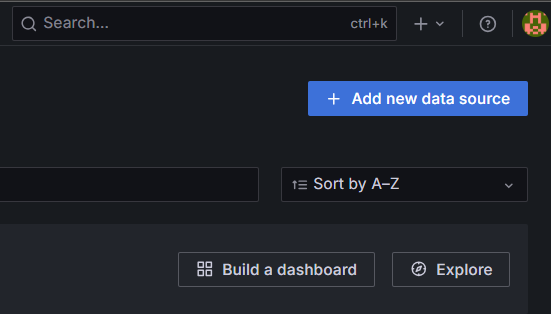
Add a New Data Source
Connections -> Data sources -> Add new data source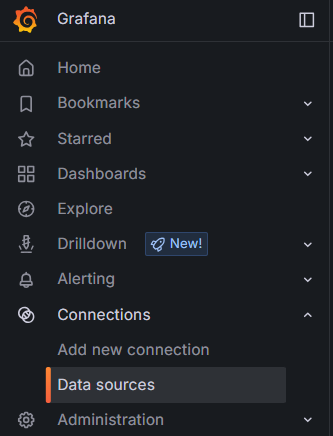
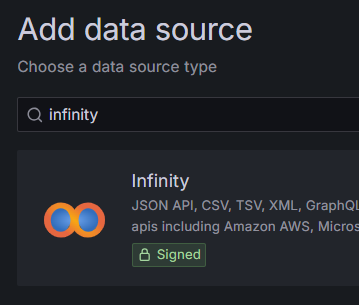
Select Infinity
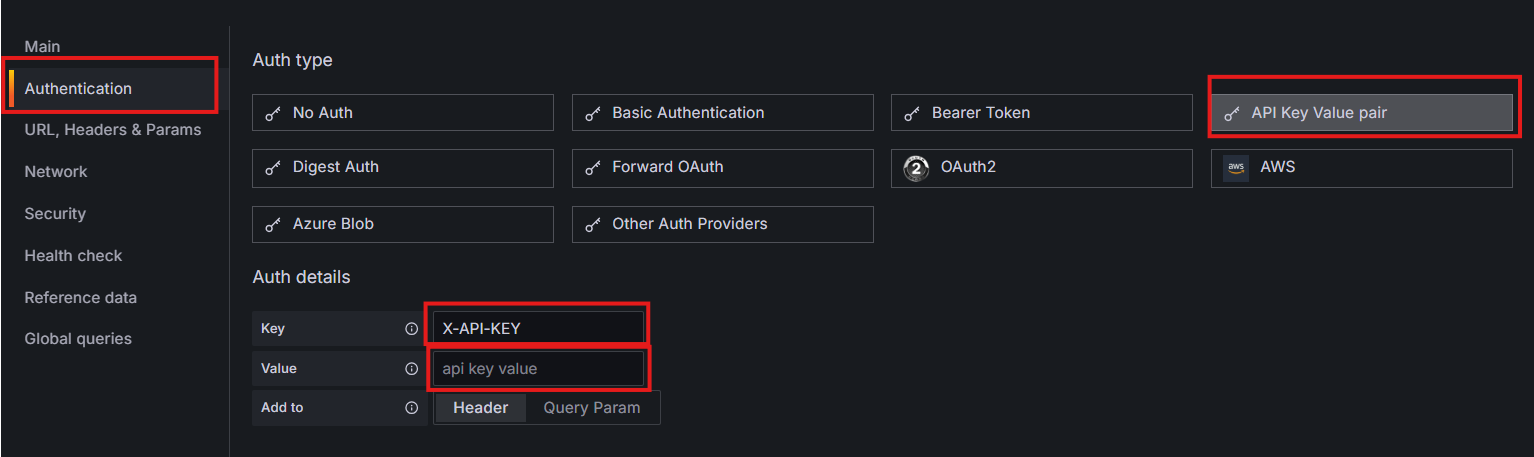
Configure Authentication
Type: API Key Value pair
Key: X-API-KEY
Value: Enter your API Key
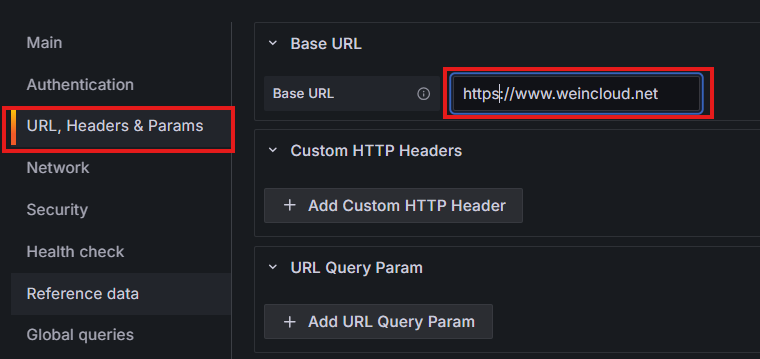
Configure Base URL
Enter the corresponding URL based on your site:
Global Service Region: https://www.weincloud.net
China Service Region: https://www.weincloud.net.cn
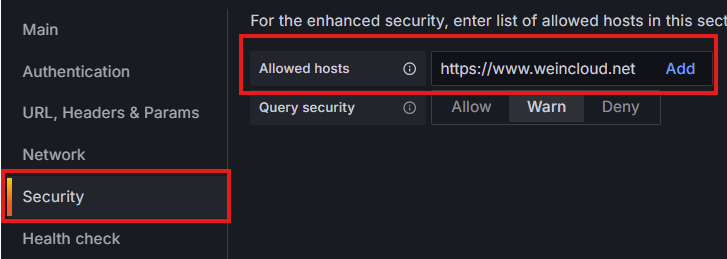
Configure Security
We must allow hosts. Enter the corresponding URL based on your site:
Global Service Region: https://www.weincloud.net
China Service Region: https://www.weincloud.net.cn
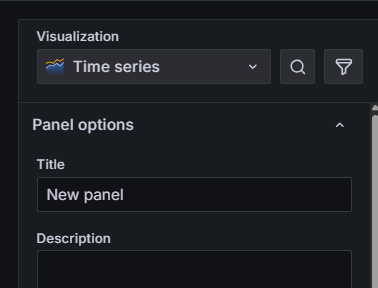
Create Panel (Time Series)
Select Visualization
Choose Time series for Visualization.
Basic Configuration
Select JQ for Parser.
Use history data:/dashboard/api/v2/open_api/history
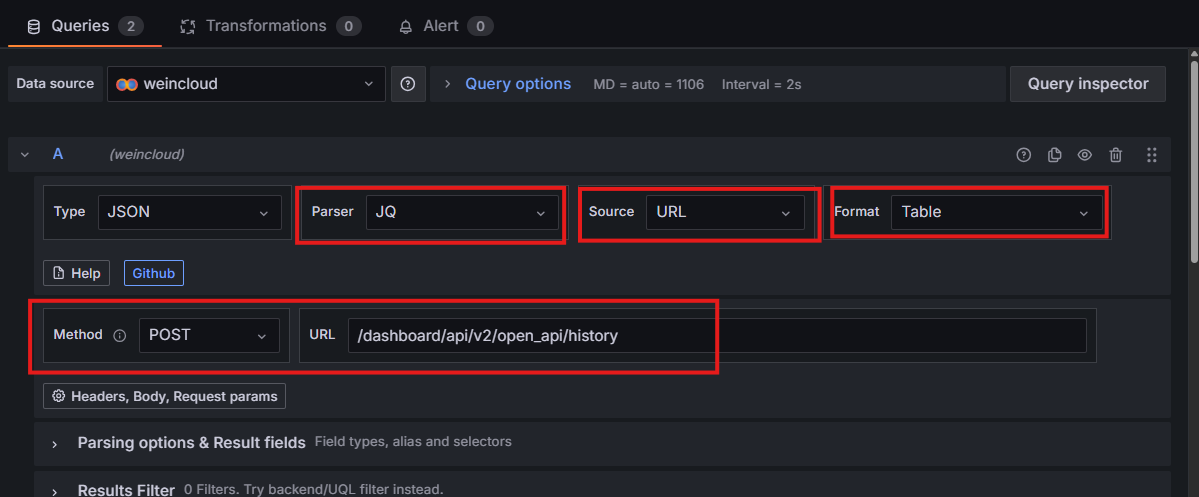
Configure Body
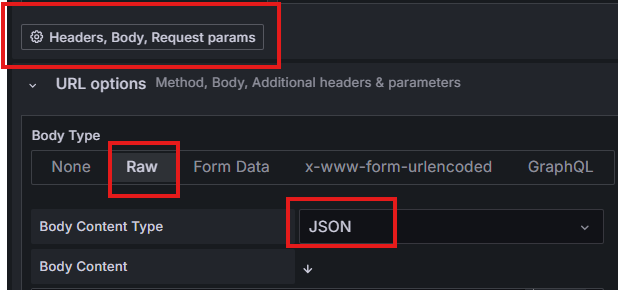
Click Headers, Body, Request params.
Body Type: Raw
Body Content Type: JSON
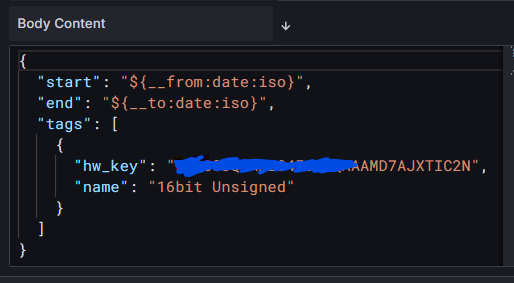
Enter the corresponding query content based on the API documentation.
示例
{
  "start": "${__from:date:iso}",
  "end": "${__to:date:iso}",
  "tags": [
    {
      "hw_key": "imhwkey",
      "name": "16bit Unsigned"
    }
  ]
}
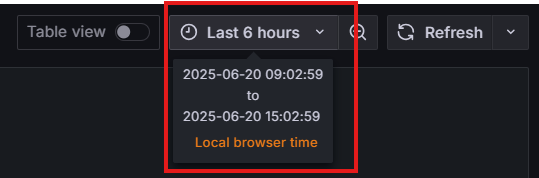
${__from:date:iso} and ${__to:date:iso} correspond to the time selector at the top of Grafana, allowing you to directly manipulate time through Grafana.
Configure Result Parsing
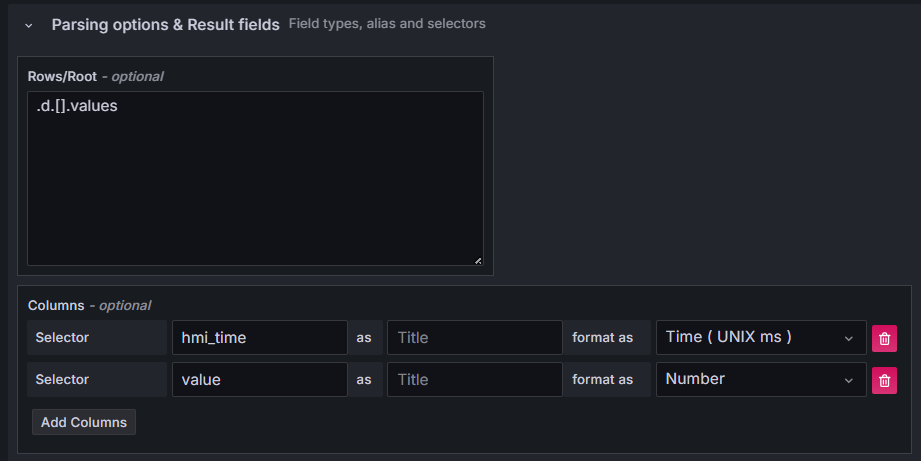
Click Parsing options & Result fields.
Enter .d.[].values in Rows/Root to retrieve the values data for each tag.
Columns need to be formatted:hmi_time -> Time(UNIX ms)value -> Number
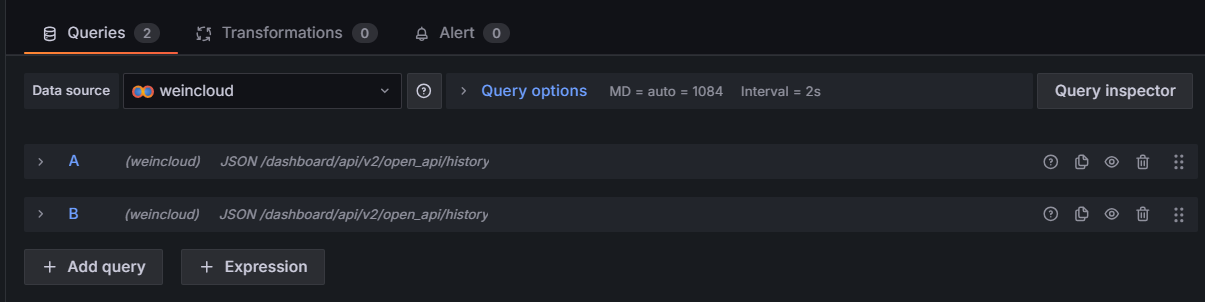
Duplicate Multiple Queries
A single query only retrieves one tag.
Therefore, duplicate one query to retrieve the second tag.
Complete the Setup
You can click Save Dashboard in the upper right corner.
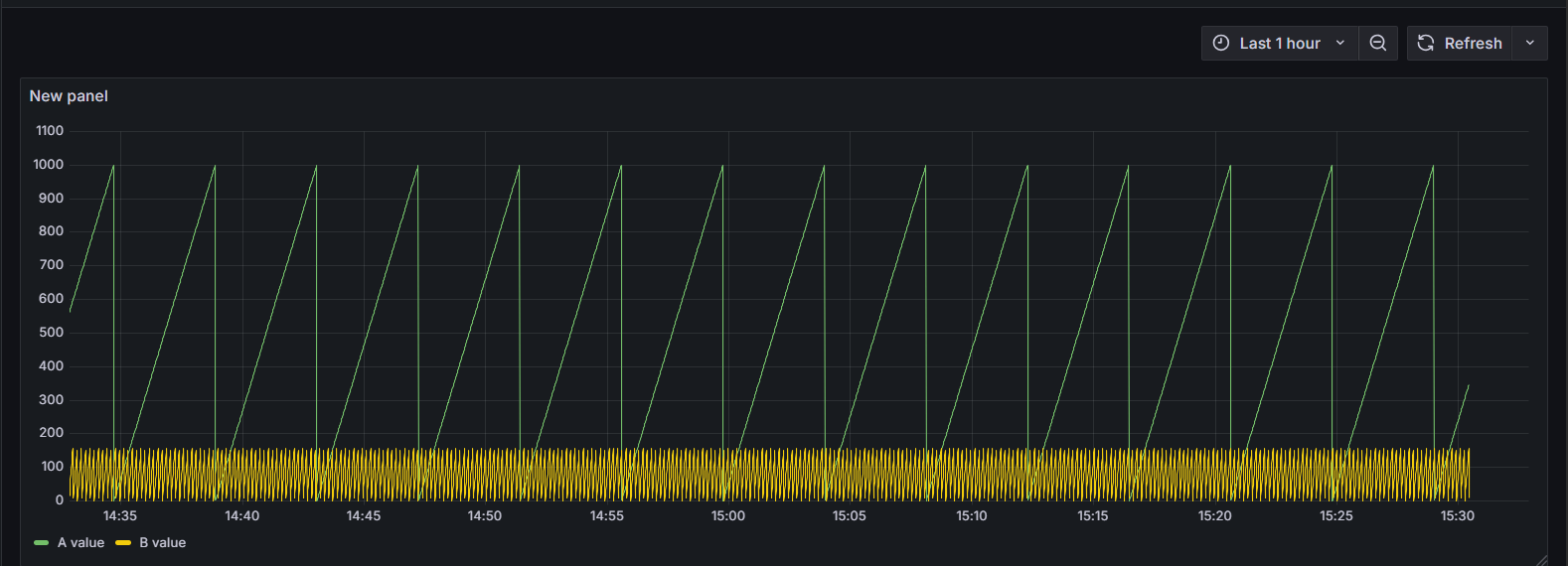
You can also click Refresh in advance to view the results.