Map
Description
- Purpose: Displays up to 5 address markers on a map to represent the locations of different HMIs.
- Functionality: Up to 10 Map widgets per screen.
Alarm Status Display
The Map widget integrates with the alarm system and reflects the real-time health status of HMIs through color changes. If an alarm is triggered in the alarm class assigned to an HMI, the map visuals change according to the following rules:
- Display Locations:
- Map Marker: The original status indicator (e.g., online/offline) changes to the corresponding alarm color.
- Map Popup Tag: When a marker is clicked, the Tags inside the popup window also change color based on whether an alarm is present.
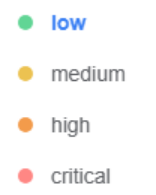
- Color Priority: When multiple alarms of different severity levels occur simultaneously, the system prioritizes the color of the highest-severity alarm. The severity levels are listed below, from low to high:
- Low
- Medium
- High
- Critical
Setting HMI Location
To ensure the map functions correctly, the HMI's latitude and longitude must be configured. Two configuration methods are available: Static Setting and Dynamic Synchronization.
Basic Setting (Static):
- Go to the Directory page.
- Select the target HMI.
- Manually enter the location information in the Info/Dashboard panel on the right.
Dynamic Location Synchronization (Auto Update from HMI): If the HMI location changes (e.g., vehicle-mounted equipment), automatic synchronization can be enabled:
- Go to Directory > Dashboard.
- Enable the [Sync from HMI automatically] option.
- Add the following two tag names in [Data Source]:
coordinate/latitudecoordinate/longitude
- After completing the configuration, perform a re-sync in EasyBuilder Pro.
Note: The tag names in the Data Source are case-sensitive. Ensure they match the spelling exactly ("coordinate/latitude" and "coordinate/longitude"); otherwise, the data cannot be read.
Style Settings
- Data Source Select the data source for displaying values. A data source must be set before the Dashboard can be published.
- Basic Set the background color, title, title font style, and divider for the widget.
- Normal Settings Set the style, zoom level, and center coordinates of the map.
- Profile Enable or disable compact mode, and set the widget's position and size.
- User Restriction
Set the object class and define the action to take when permissions are not granted.