Smart Report (Beta)
Beta Notice
This feature is currently in Beta, meaning it is still under active development and refinement. You may encounter some limitations or inconveniences while using it. We welcome your feedback to help us improve the product's quality and user experience.
Overview
Smart Report uses the tag data of a specified HMI together with a user-defined report prompt to let AI automatically identify applicable calculation formulas and generate an analysis report that includes charts, making it easy for users to quickly review data results for a specified date. The report covers analytical conclusions and charts, and can serve as a reference for project improvement and decision-making, as well as a source of inspiration for new ideas.
Intended Users and Use Cases
- Permission requirements: To open Smart Report for a target HMI, the user must meet any of the following:
- The account is a Domain Superuser;
- The account has global Dashboard management permission;
- The HMI's permission settings have granted Dashboard management permission to the current account.
- Prerequisite: The target HMI must have at least 1 tag with historical data enabled; otherwise, a report cannot be generated.
- Not applicable to: Smart Report is not supported on simulated HMIs.
- Typical scenarios: periodically generating data summary reports for a production line or equipment, using AI suggestions to quickly identify abnormal trends, and using reports as reference material for project improvement meetings.
Feature Details
Quick Start
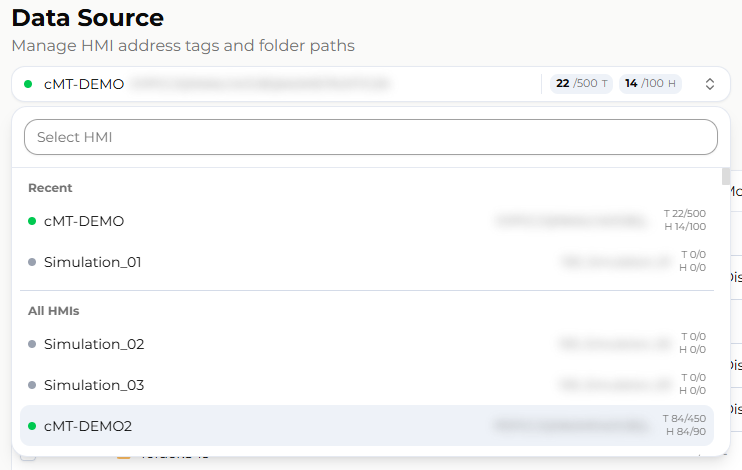
Select the HMI for which you want to generate a report.
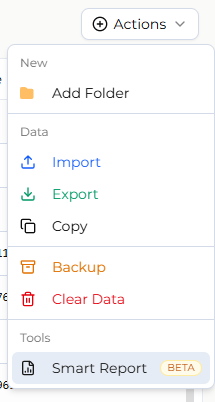
Click the [Smart Report] icon at the top.
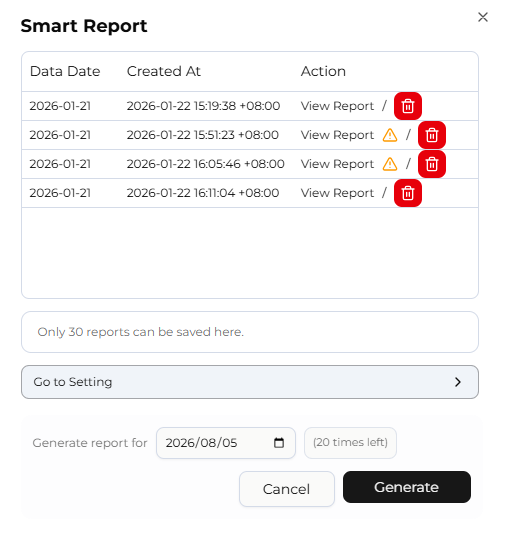
When the Smart Report window appears, click [Go to Settings] at the bottom.
Click the magic wand icon on the middle right to generate an AI-suggested report prompt.
After the report prompt and formulas are generated, select the data date the report should reference at the bottom, then click the [Generate] button on the right.
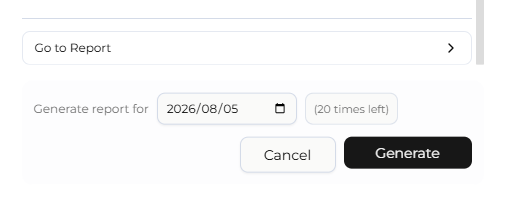
The page navigates to the report list, where you can monitor the report's generation progress.
Once the report is complete, click [View Report] to review its content.
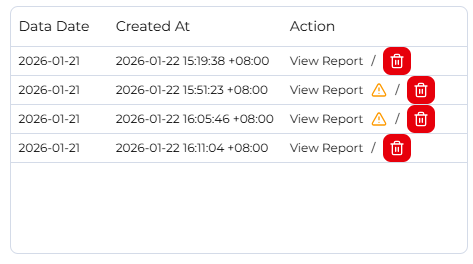
Report Format
Report Basic Information
- HMI Information: Shows the HMI name and HMI alias.
- Data Date: Shows the data date referenced by the report; the time zone is the user's time zone at the moment the report was generated.
- Report Prompt Settings: Shows the report prompt configured in the previous section.
- Report Description: A brief explanation and summary generated by AI based on the entire report's content.
Report Content
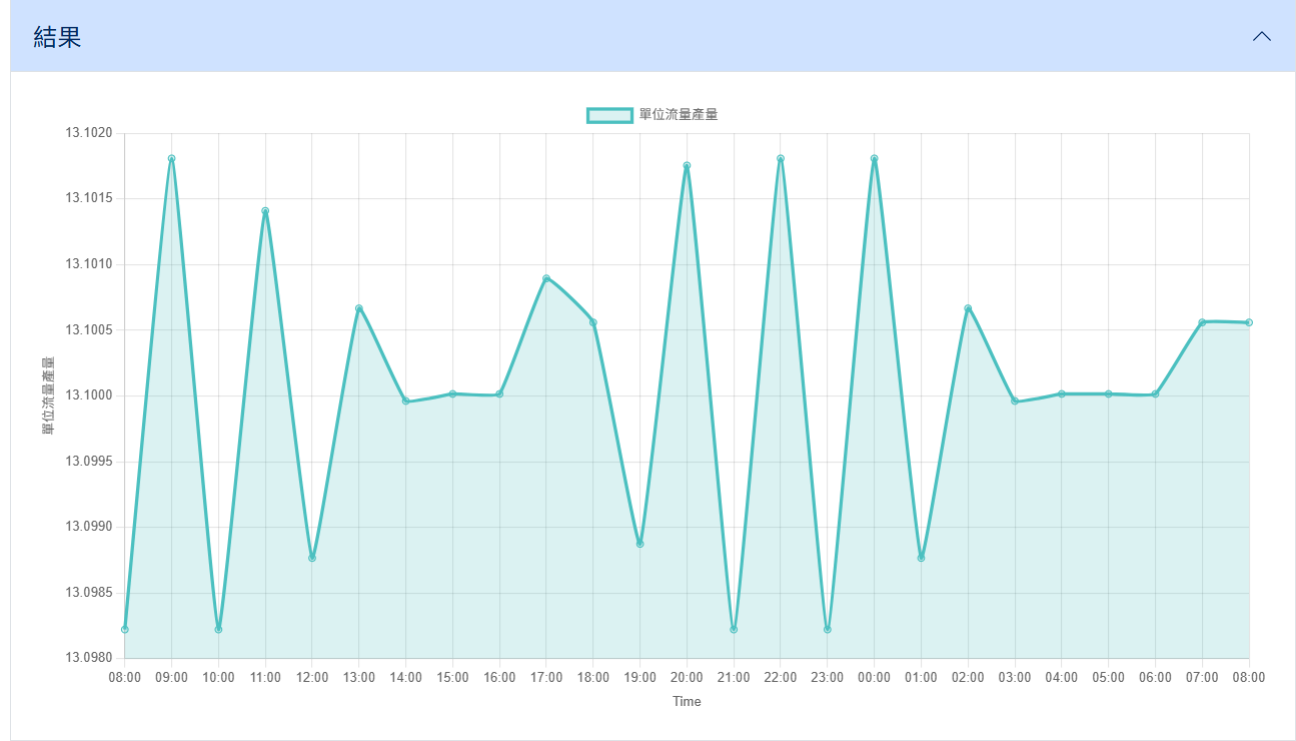
Each block represents a formula, along with its corresponding chart or result.
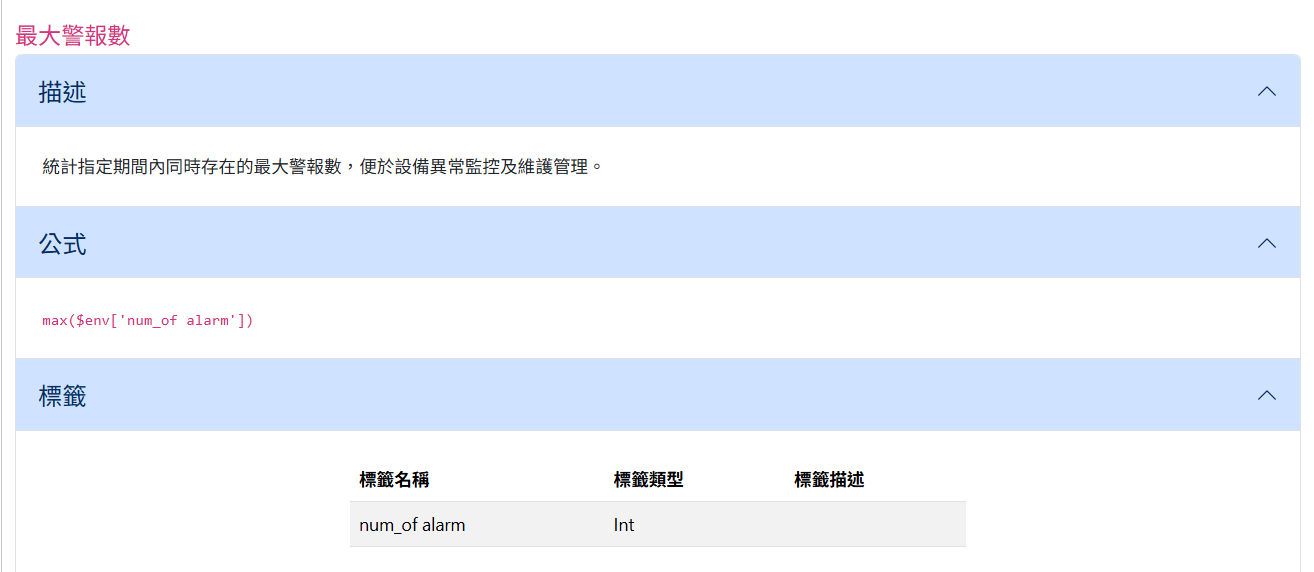
Title and Description: Explains the purpose of the formula and what information it references.
Formula: A mathematical formula that reveals which tags are referenced and what mathematical expression is used.
Tags: The list of tags referenced by the formula.
Result: Presented as a line chart, bar chart, or a single result value.
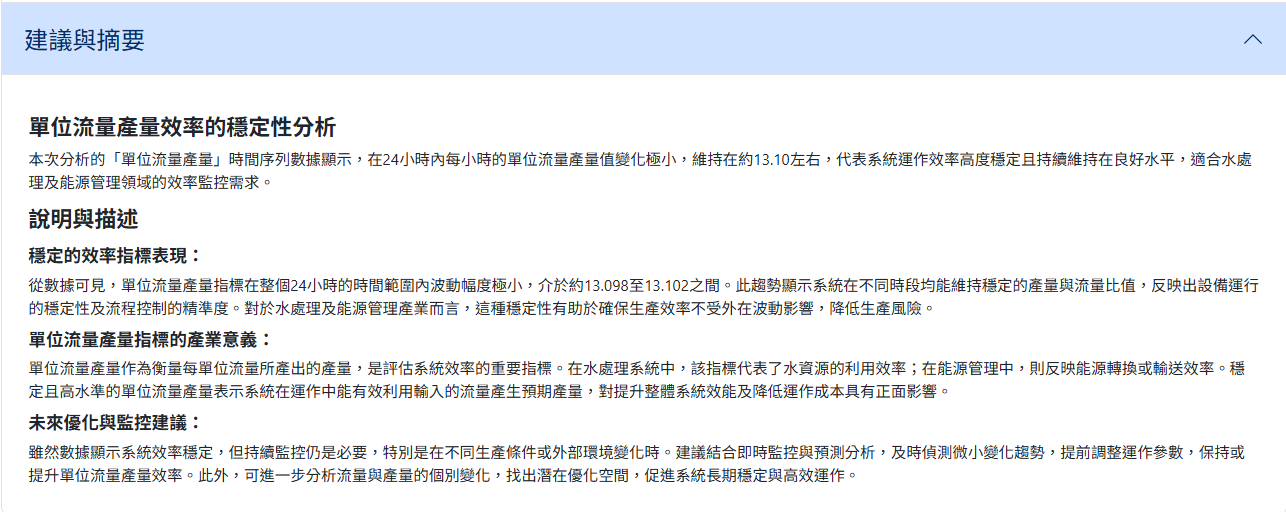
Suggestions and Summary: AI provides a detailed explanation of how to interpret the data, what the data shows, and what improvements or related suggestions could be made for the industry or project.
Limitations and Notes
- Report Time Range: Based on a single day, using the user's time zone at the moment the report is generated. For example, if the time zone at the time of generation is UTC+8 and the selected data date is 2025-12-10, the data time range used is 2025-12-10 00:00:00 to 2025-12-11 00:00:00 (UTC+8).
- Prerequisite: The target HMI must have at least 1 tag with historical data enabled, because the report's data time range spans 24 hours and requires historical records to perform the calculations and analysis.
- Supported Tag Types: Currently only Int, Float, and Boolean types are supported; String type tags are not currently available.
- Report Prompt Screening: Although Weincloud allows custom report prompts, it screens and filters content for safety, so the prompt's content may be slightly adjusted after it is updated. Report prompts are limited to 1,000 characters.
- Report Storage Limit: Up to 30 reports can be stored per HMI; to generate a new report beyond this limit, delete an existing report first.
- Generation Count Limits: The first time each HMI is used, the following limits apply:
- 30 report generations with no time restriction; once used up, this changes to 3 per 24 hours, resetting after each 24-hour period.
- 30 report prompt edits/generations with no time restriction; once used up, this changes to 1 per 24 hours, resetting after each 24-hour period.
- Number of Formulas: Up to 5 formulas can be generated per HMI; formula content varies based on the report prompt, tag names, tag types, and tag descriptions. If the report prompt changes, all formulas are re-evaluated and regenerated.
- Language Behavior: The report is generated in the interface language the user was using at the time of generation. For example, if the report prompt is configured under the en locale, the generated result is in English; if the user later switches to zh-TW before generating another report, that report will be in zh-TW. Once a report is generated, its language does not change afterward.
- Wait Time: The system tracks report generation progress by polling, and reports are typically completed within seconds to a few minutes after submission. If a report is not yet complete after an extended period, refresh the report list to check its latest status.
FAQ
Q: Why can't I generate a report? A: Check the following: whether the target HMI has at least 1 tag with historical data enabled; whether the account has Dashboard management permission for that HMI; and whether today's generation count has reached its limit (30 uses with no time restriction the first time, then 3 per 24 hours afterward).
Q: Can I use String type tags in a report? A: Not currently. Smart Report's formulas only reference Int, Float, and Boolean type tags; String type tags are not yet supported.
Q: How long does it take for a report to complete? A: The system automatically polls report generation progress, which typically completes within seconds to a few minutes. You can view the live progress in the report list without needing to manually refresh the page.
Q: Can I change the display language of a report that has already been generated? A: No. A report's language is fixed to the user's interface language at the time of generation and does not change afterward. To get a version in another language, switch the interface language and generate the report again.