Receiving Push Notifications by Signing in to the EasyAccess 2.0 App with a Social Account
After signing in to the EasyAccess 2.0 App on a mobile device with a social account, you can directly subscribe to and receive push notifications from HMIs across different Domains — without logging in to a Domain account.
Requirements:
- HMI with EasyAccess 2.0 activated
- Push notification enabled in EasyBuilder Pro (check "Push Notification (EasyAccess 2.0)" in the Event Log settings)
Where to Find It
After signing in to the EasyAccess 2.0 App with a social account, you can open Social Event Logs from either of these two places:
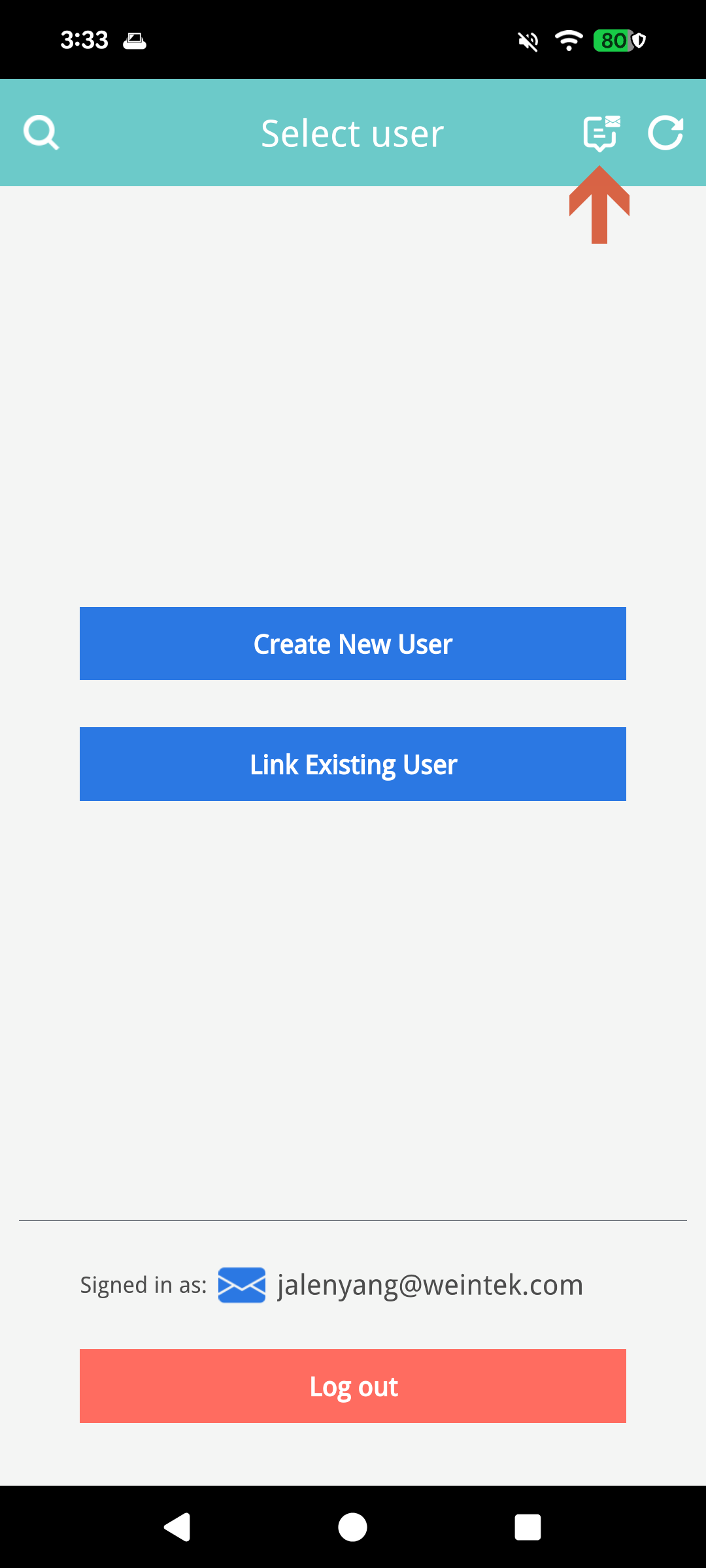
On the "Select User" page, tap the Social Event Logs icon in the top-right corner.
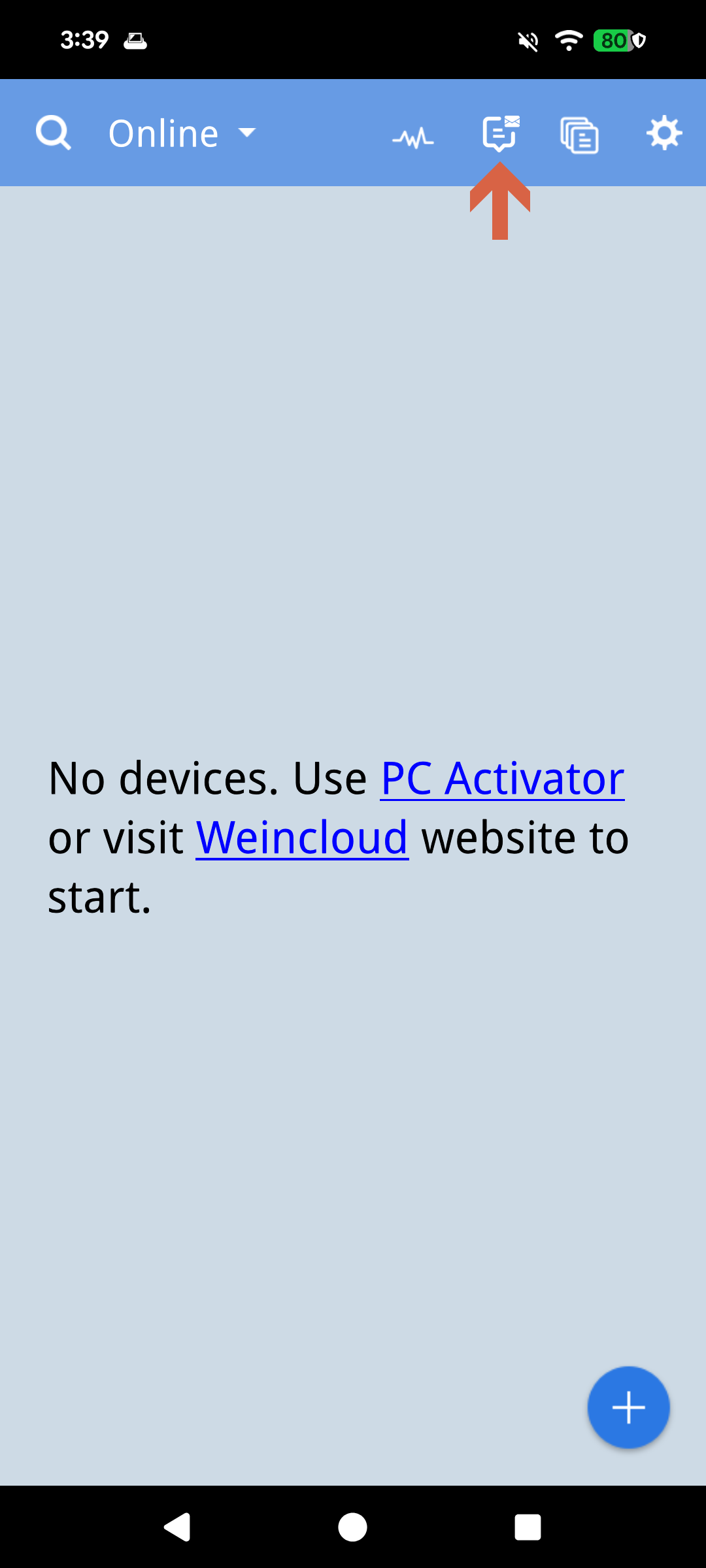
On the HMI main page, tap the same Social Event Logs icon in the top-right corner.
Adding an HMI
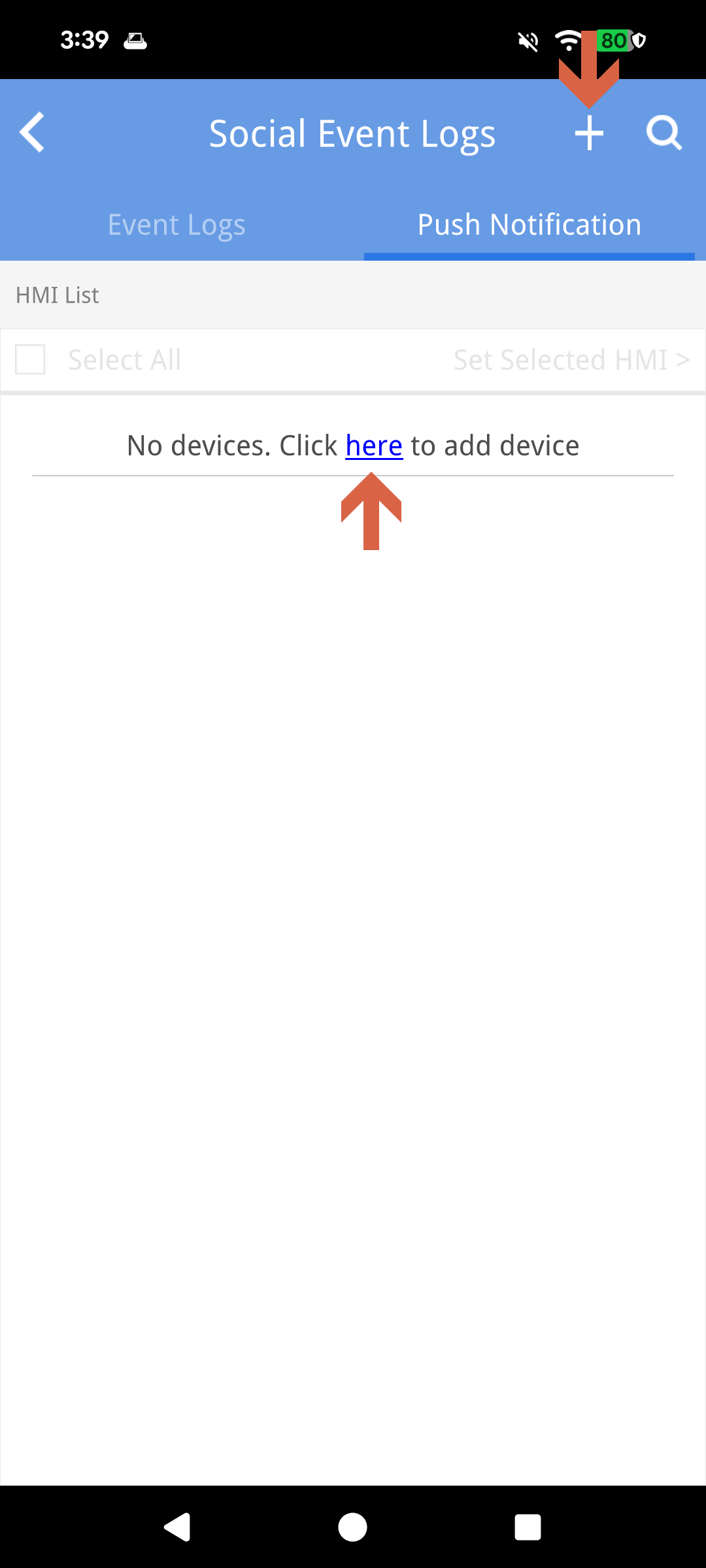
When no HMI has been added yet, a prompt is shown. Tap the prompt to add an HMI, or tap the + icon in the top-right corner.
Scan the QR code on the HMI. For how to generate the QR code, refer to Push notification to social media accounts.
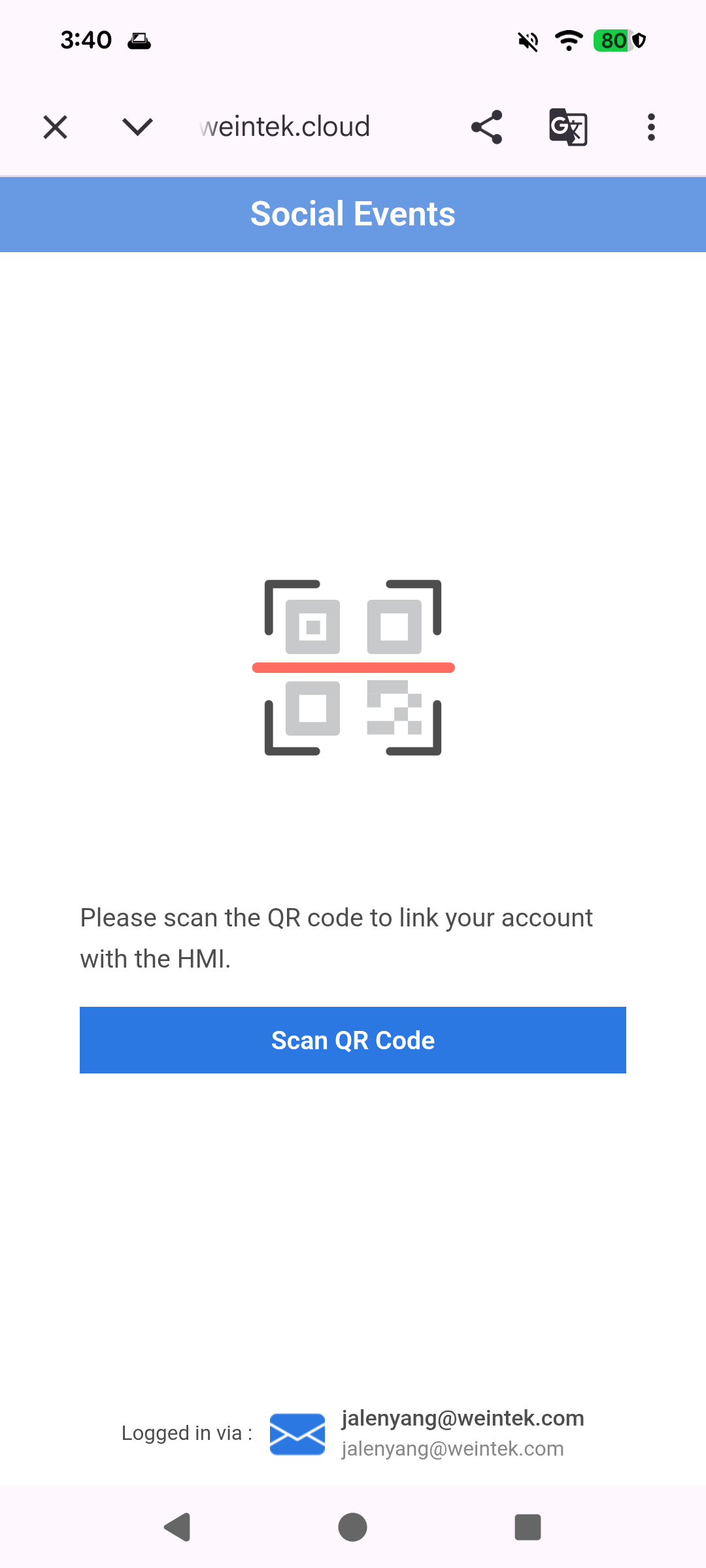
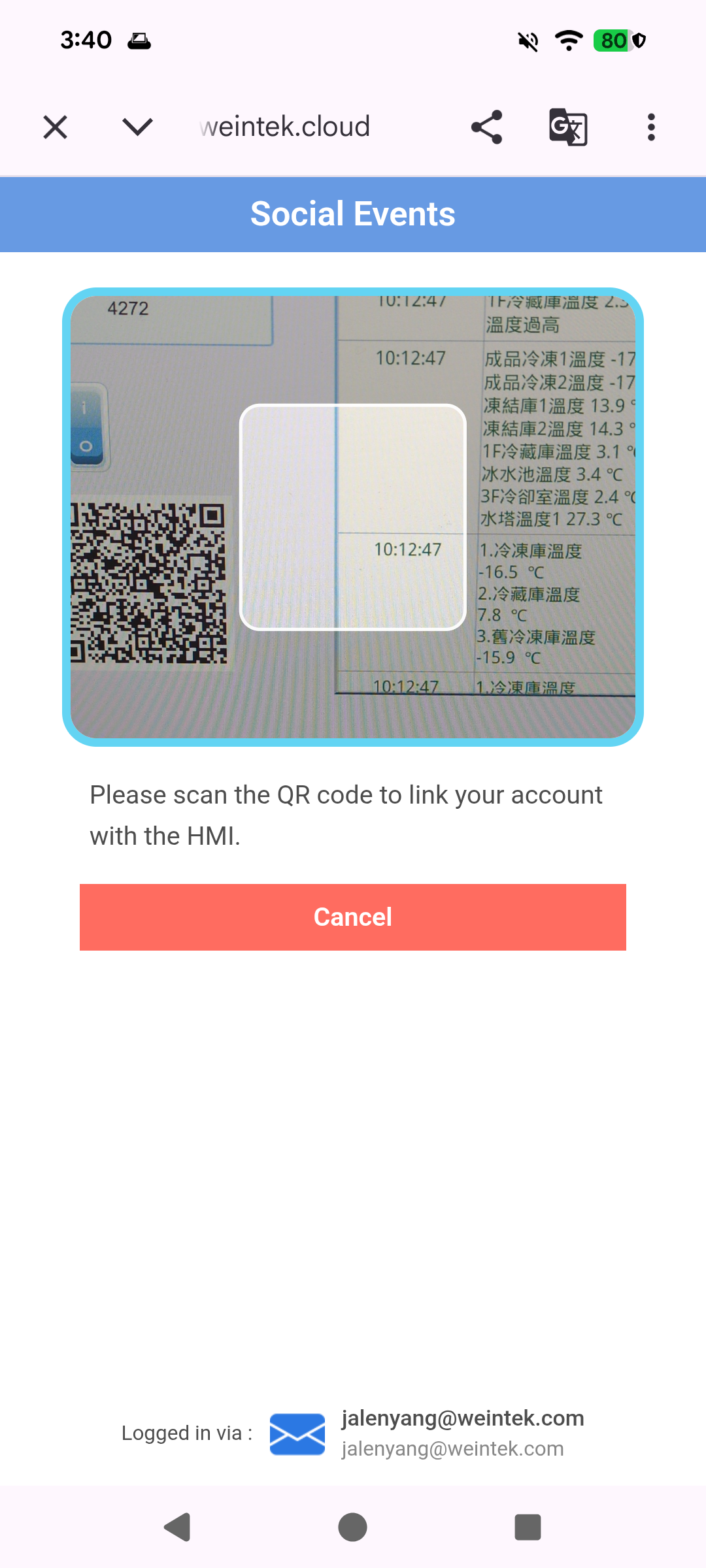
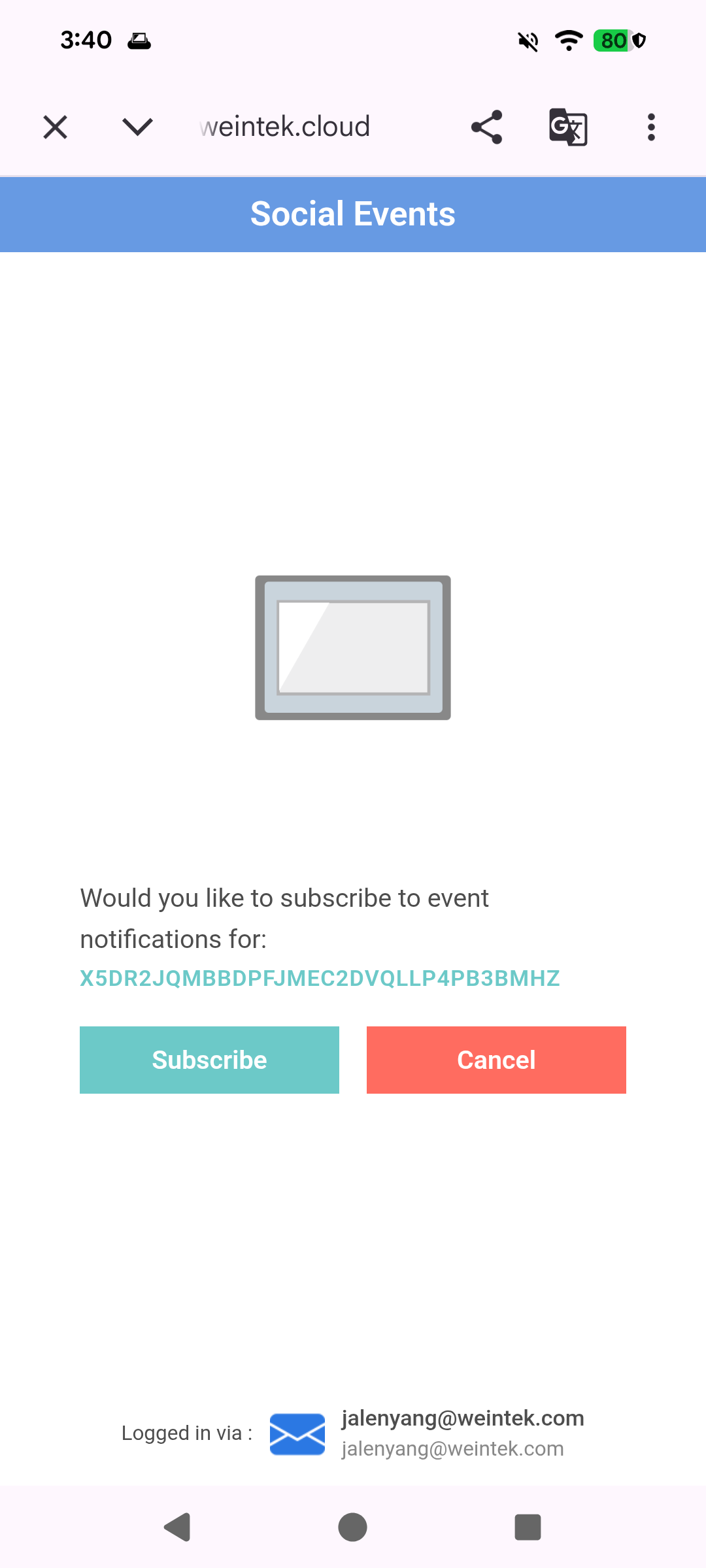
After a successful scan, confirm the HMI information is correct and tap Subscribe to add the HMI.
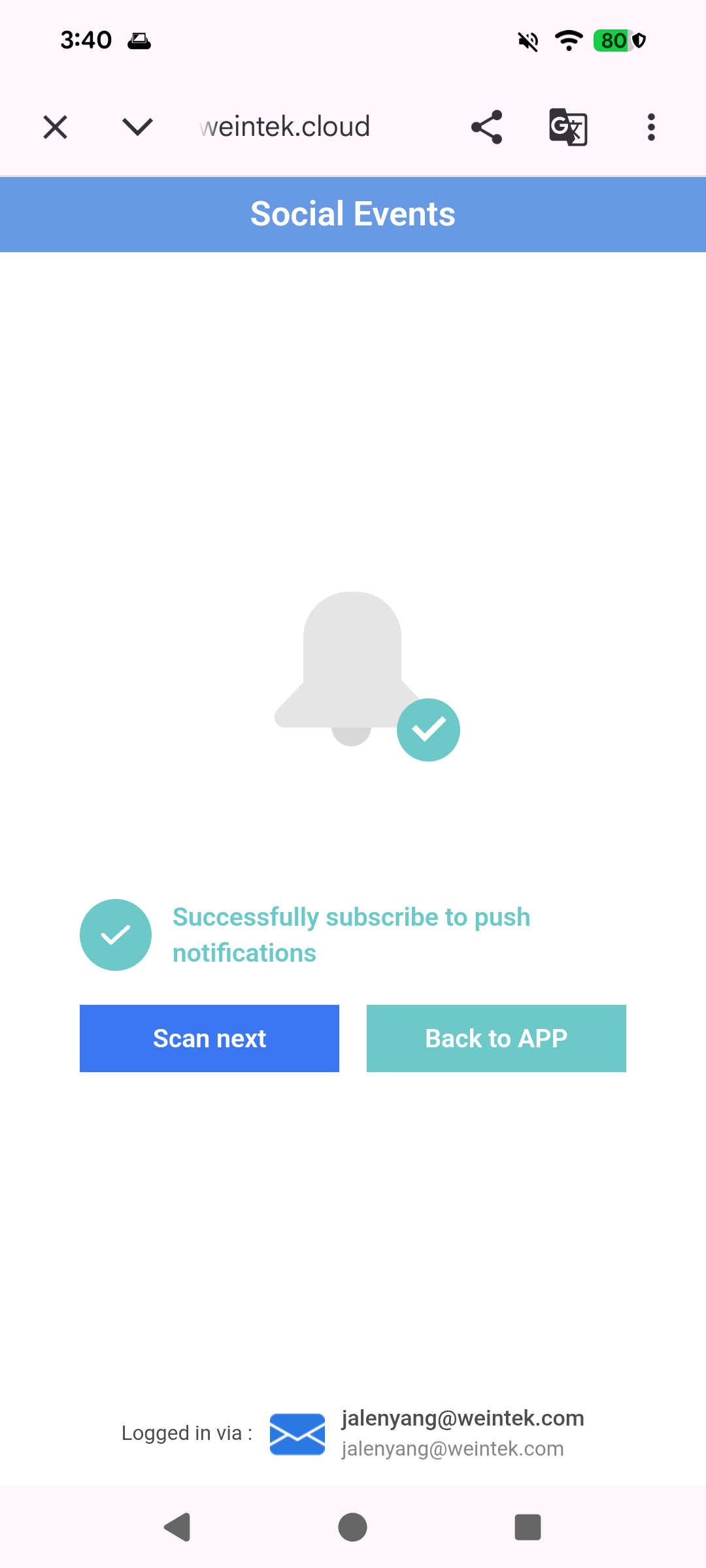
Return to the HMI list to see the newly added HMI.
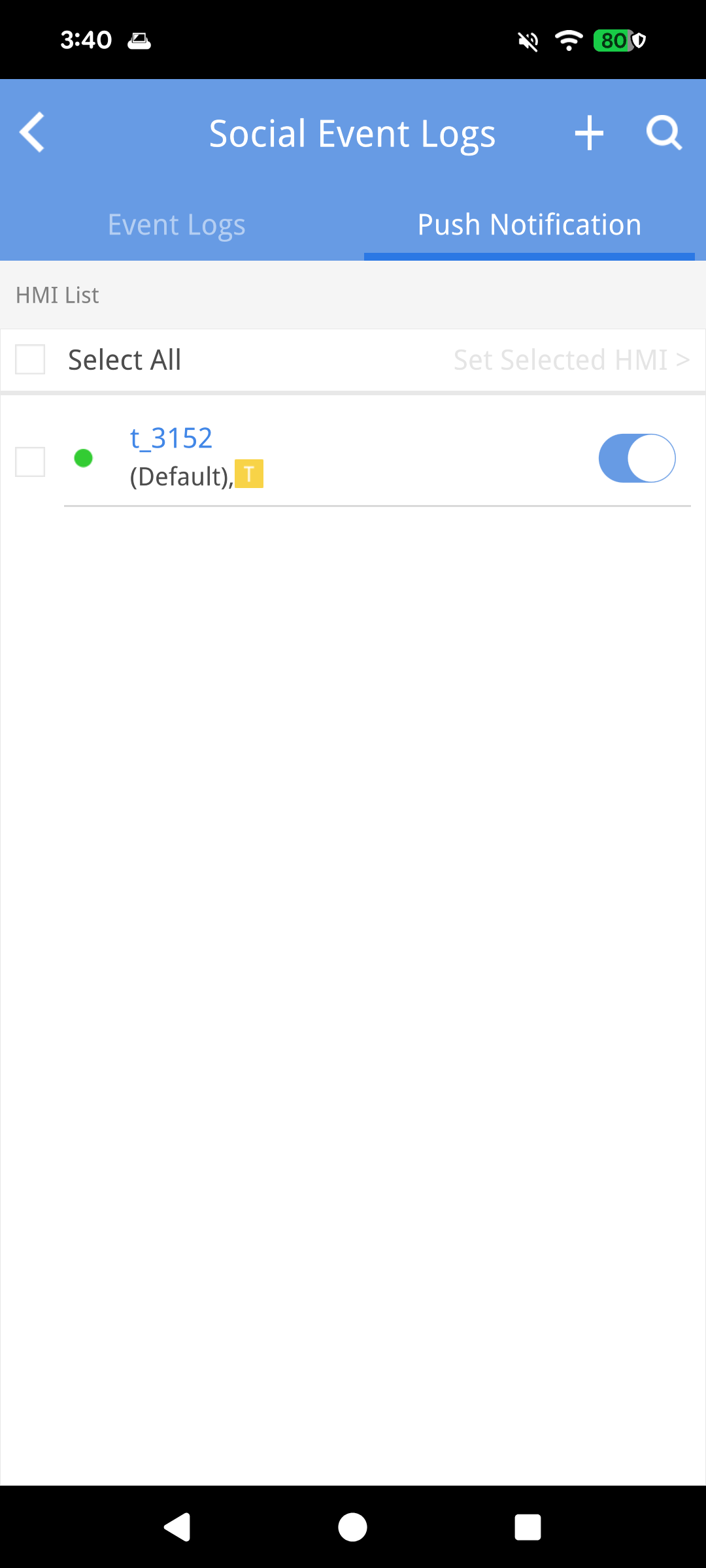
Configuring Push Notifications for a Single HMI
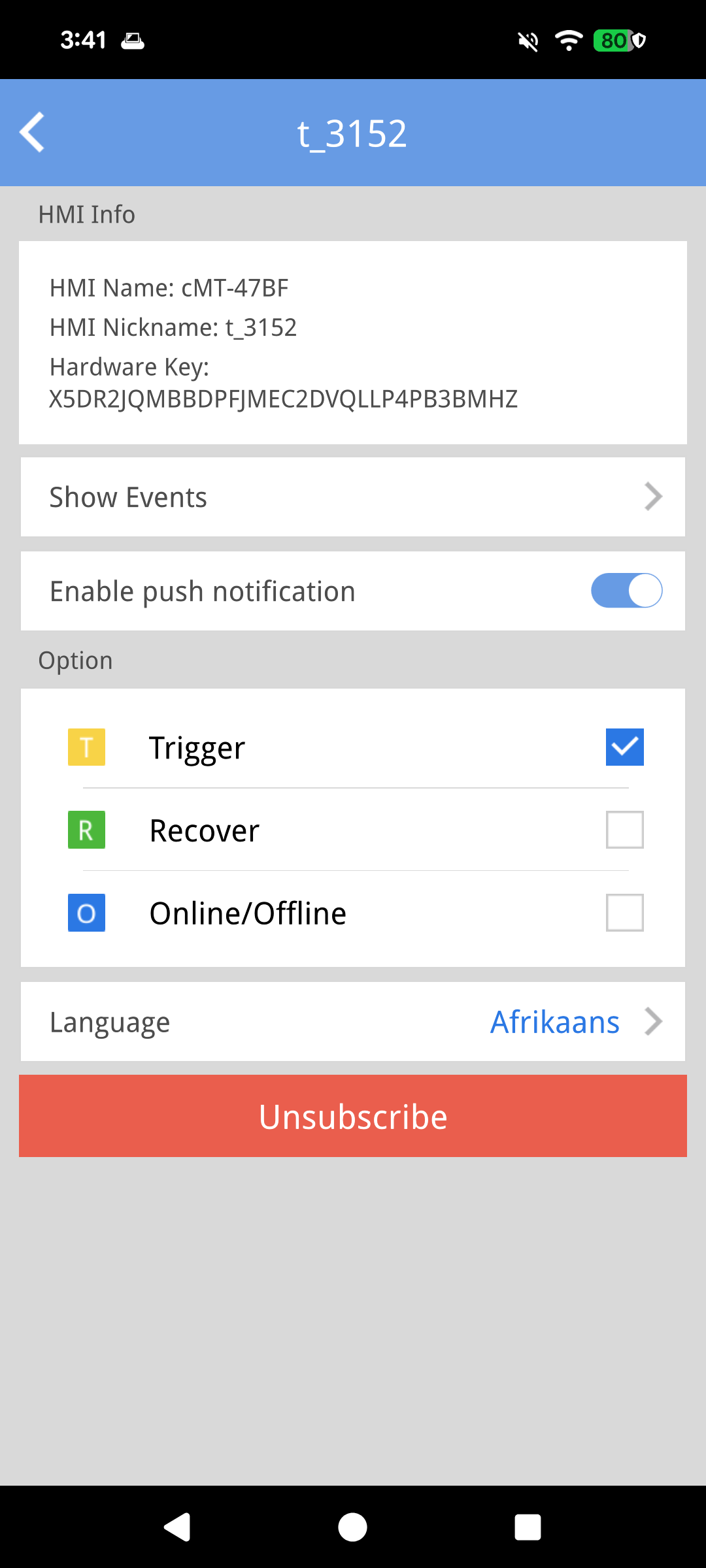
Tap an HMI in the list to view its information. On this page you can:
- View the HMI's event logs (Show Events)
- Enable or disable push notifications
- Set the message types to receive (Trigger, Recover, Online/Offline) and the language
- Unsubscribe from the HMI (Unsubscribe)
Configuring Push Notifications for Multiple HMIs
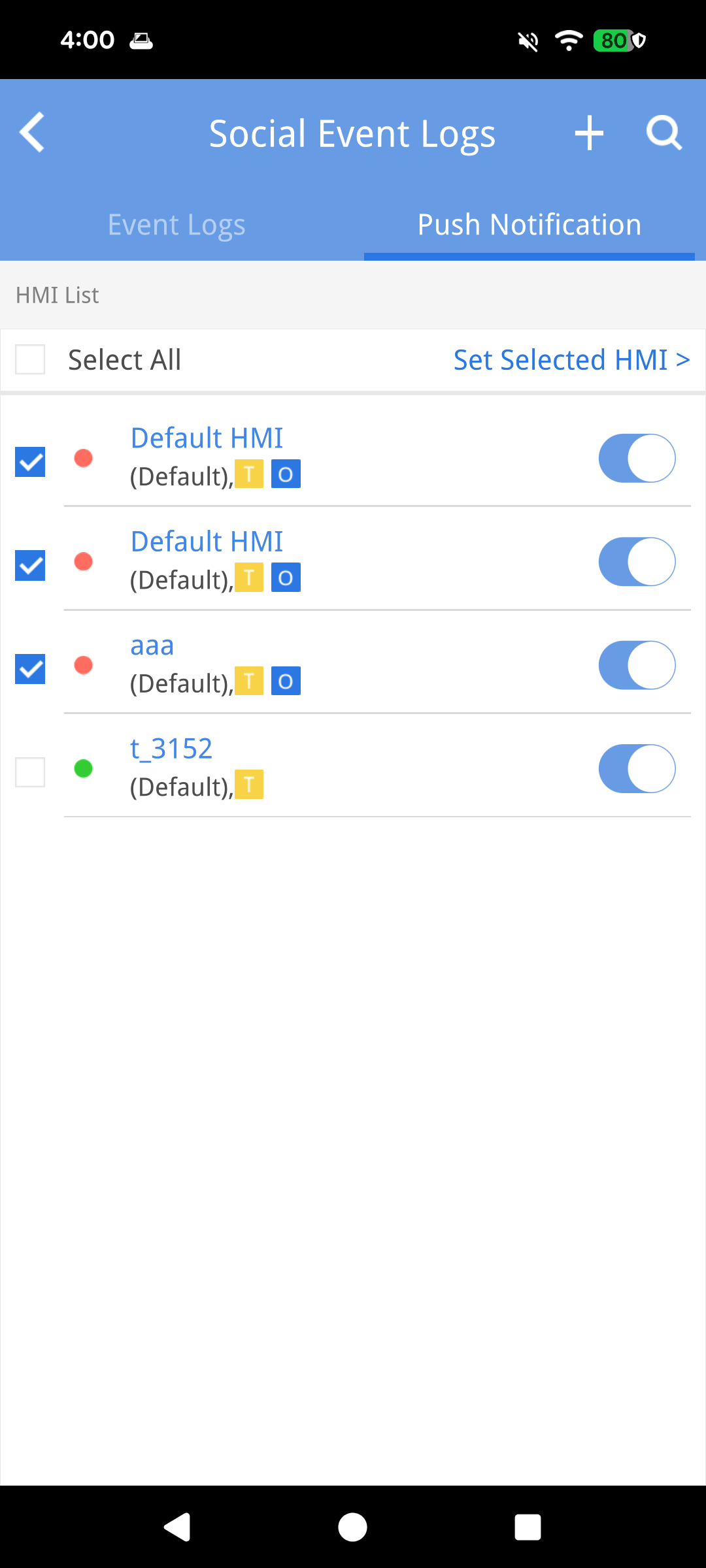
Each HMI has a checkbox in front of it; select multiple HMIs, or tap Select All to select them all.
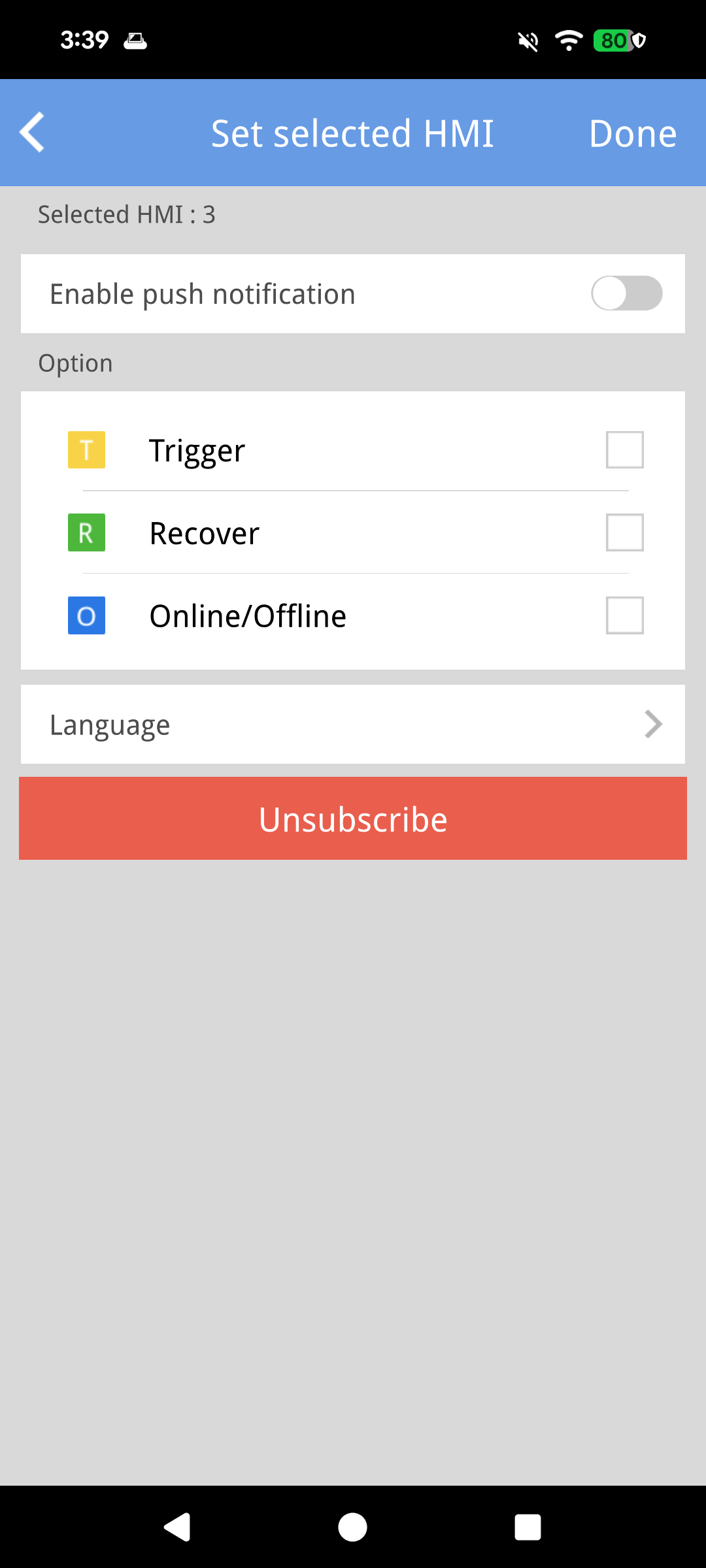
After selecting, tap Set Selected HMI in the top-right corner to configure "Enable Push Notification", "Message Options", and "Language" for multiple HMIs at once, or to unsubscribe from multiple HMIs at once.
Event Logs
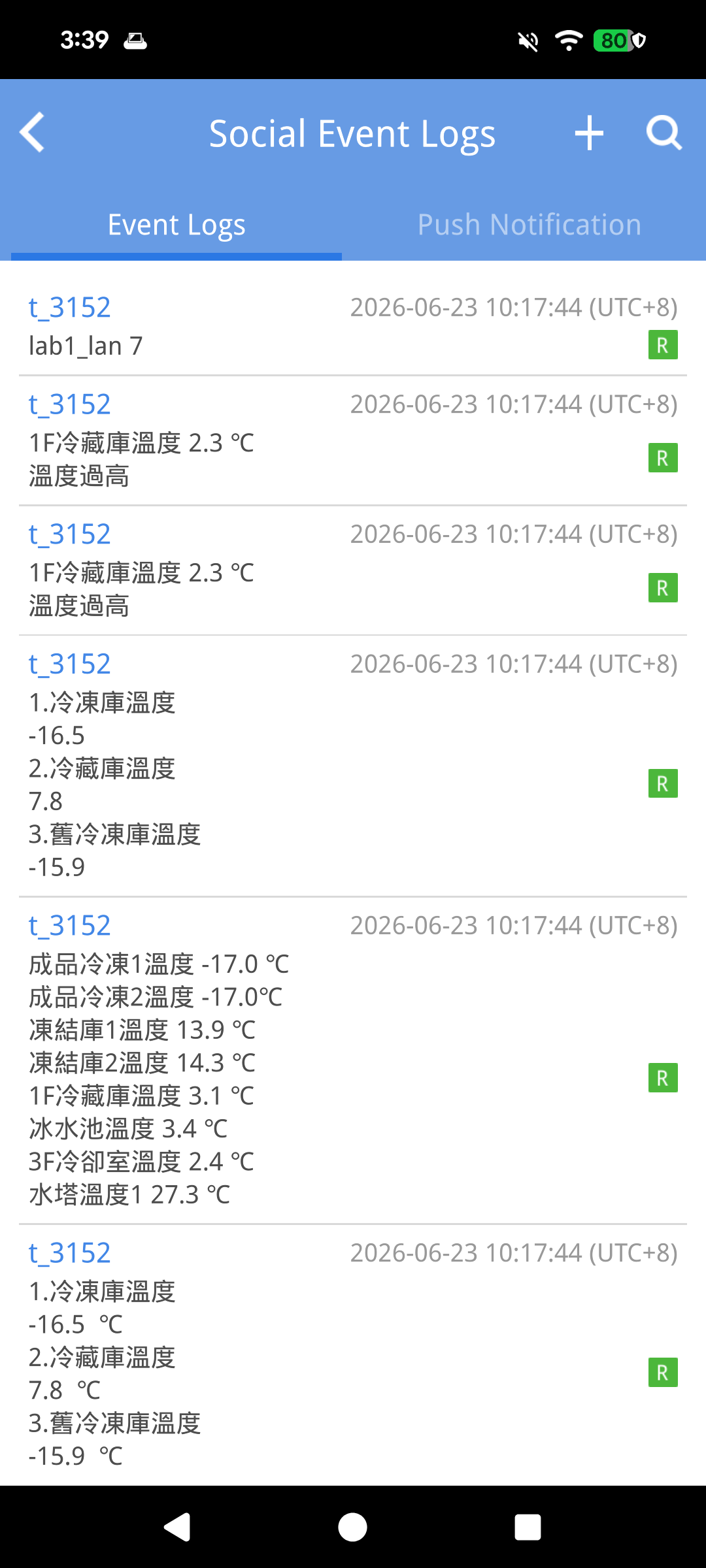
Switch to the Event Logs tab to list events from all subscribed HMIs. To view events for a single HMI only, open that HMI and use Show Events.