VPN Timeout
When an EA App connects to an HMI, the system automatically disconnects the VPN if it stays idle for too long, freeing up idle connection resources.
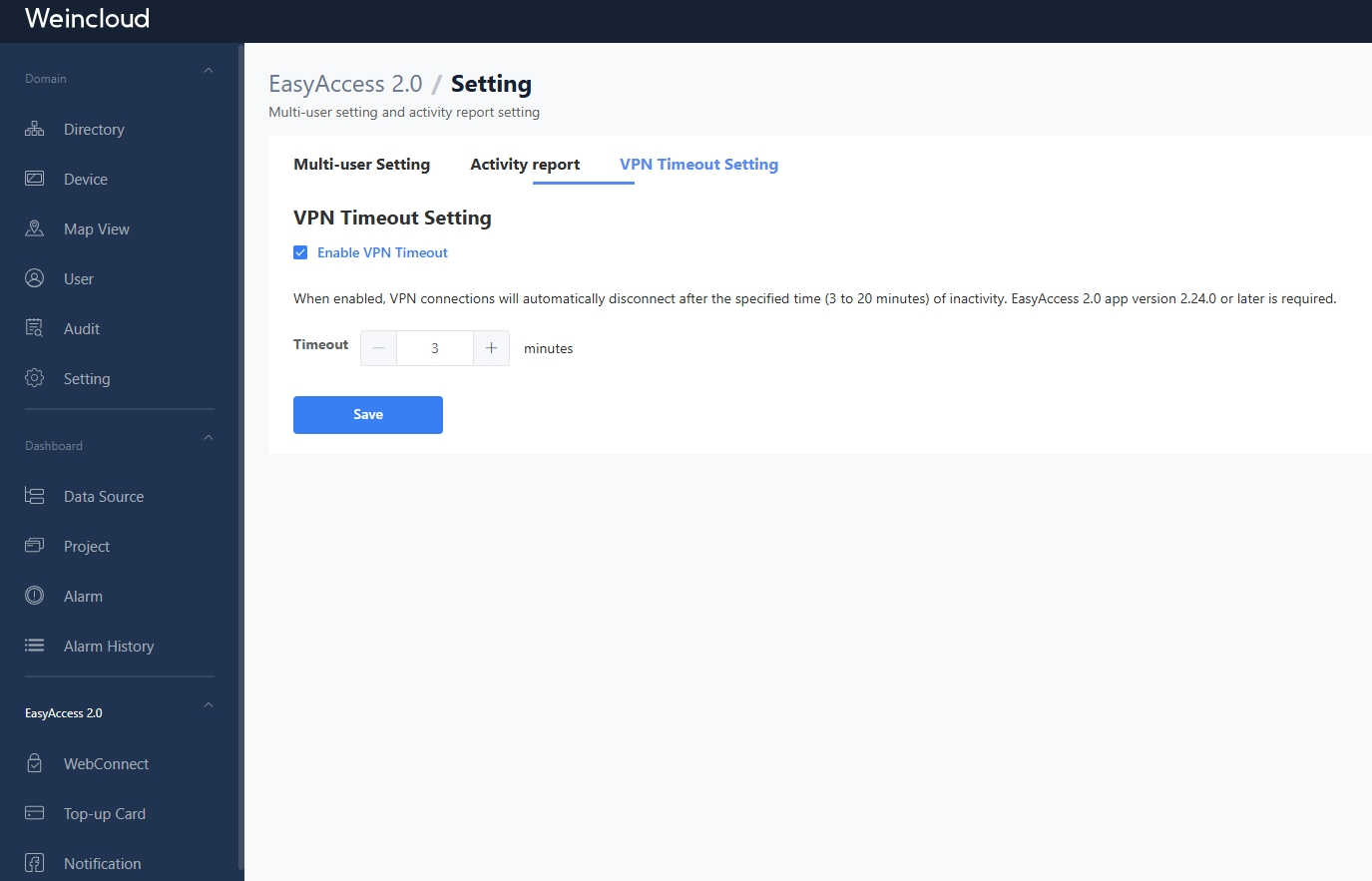
This function is controlled by the Domain Admin and is configured on the settings page. Once enabled, all users in the domain can use this feature.
Note: Please update EasyAccess 2.0 to V2.24.0 or later first.
1. Configure the Timeout Duration
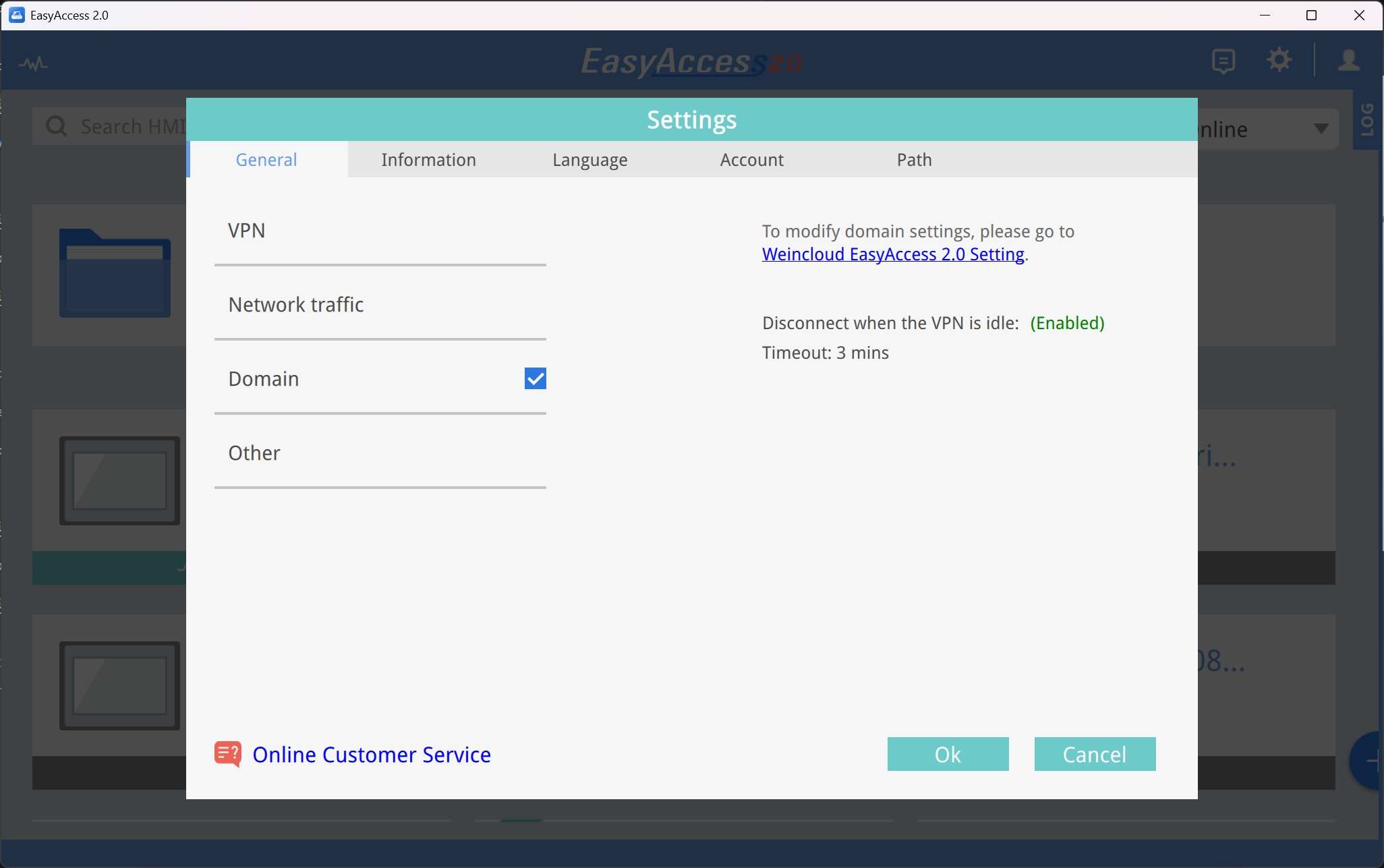
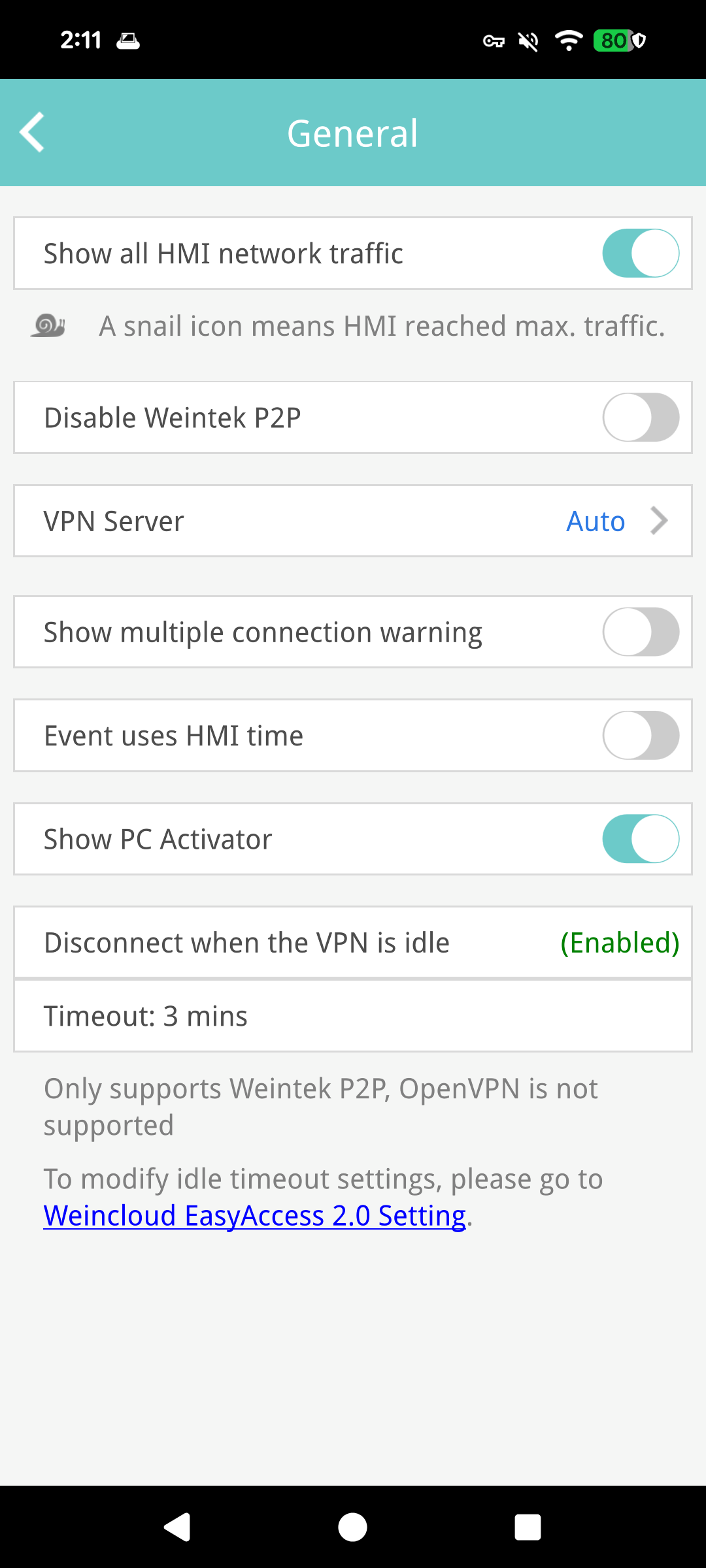
The timeout duration can only be configured on Weincloud. The EA App can only display the current setting and cannot change it directly. To adjust the value, please configure it on the Weincloud web page.
Weincloud Settings Page
EA App Display (View Only)
PC App
Android / iOS App
2. Timeout Disconnection Notification
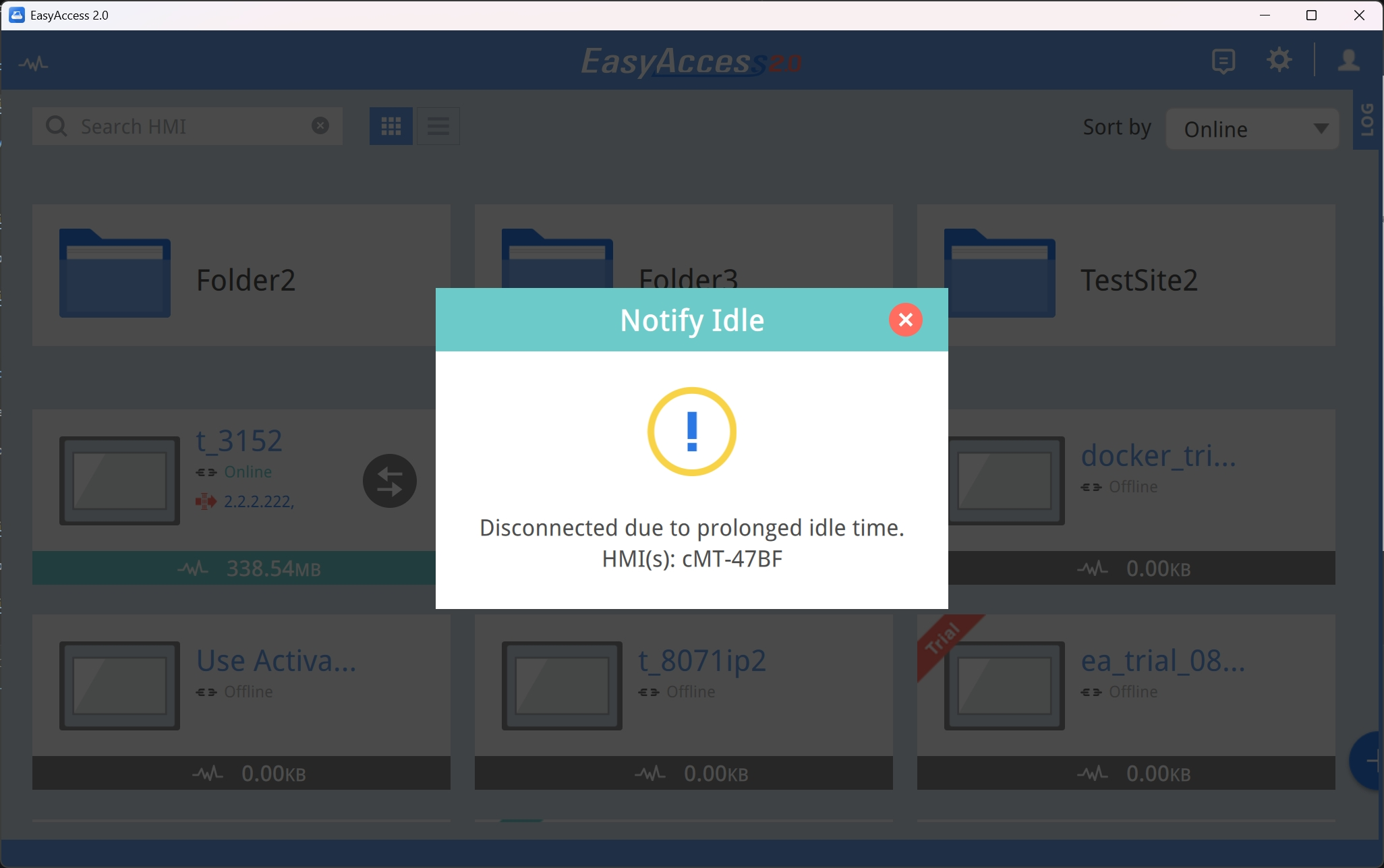
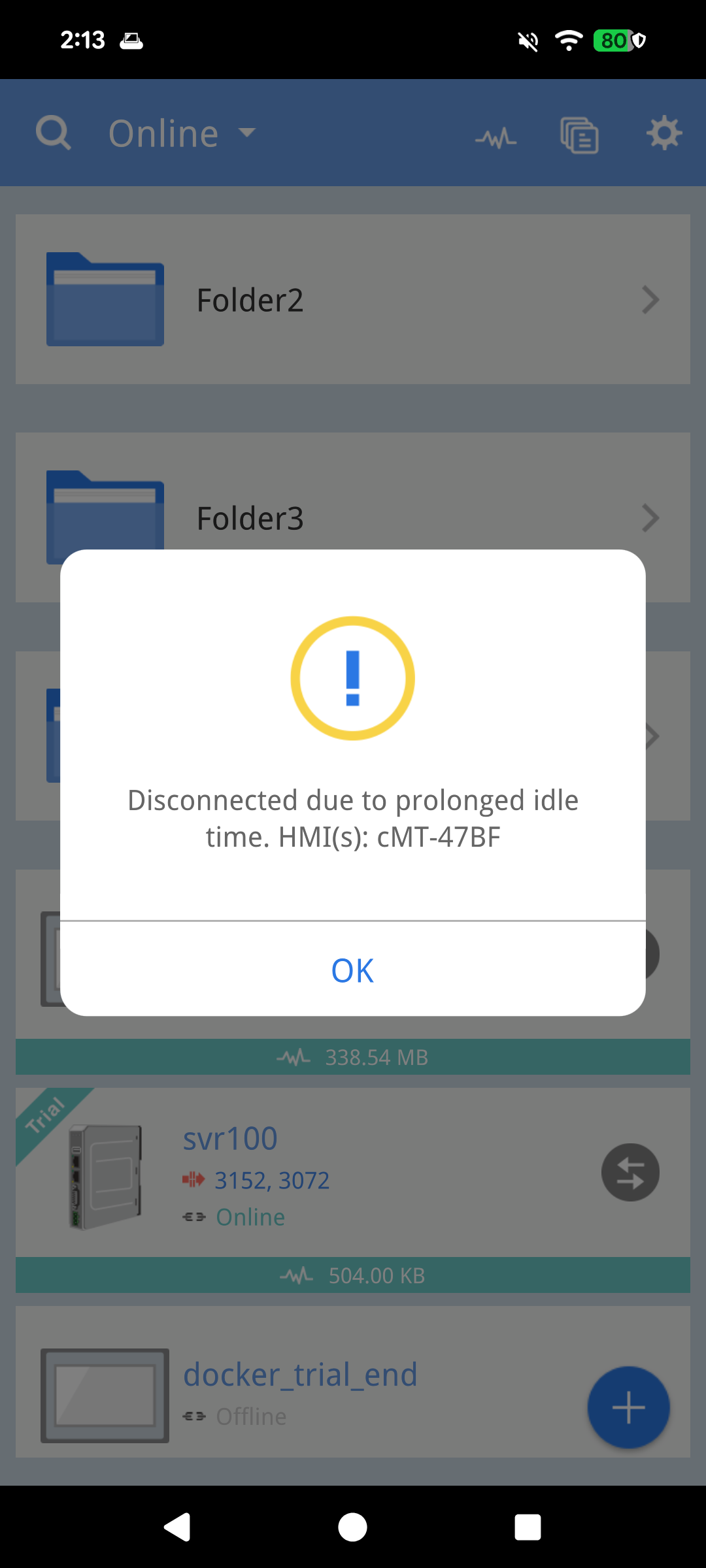
When the VPN usage time exceeds the configured value, the VPN connection is automatically disconnected, and the App displays a notification informing the user that the HMI connection has timed out and been disconnected.
PC App
Android / iOS App
3. View Connection Information
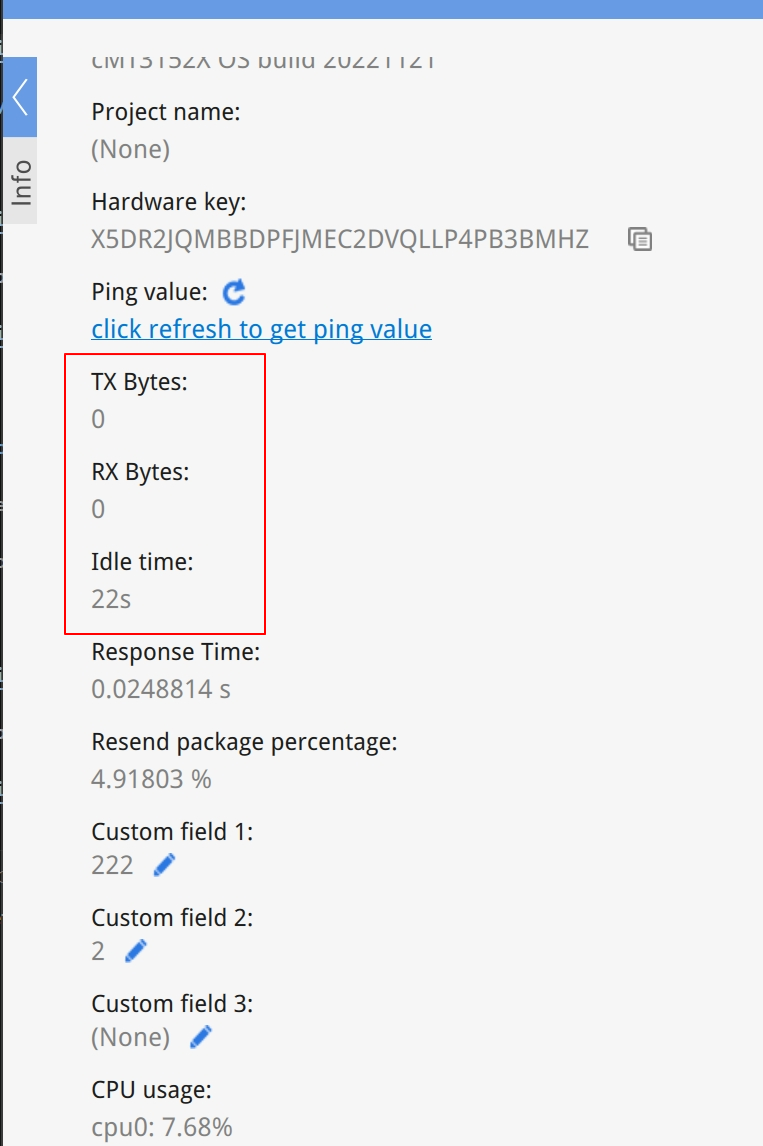
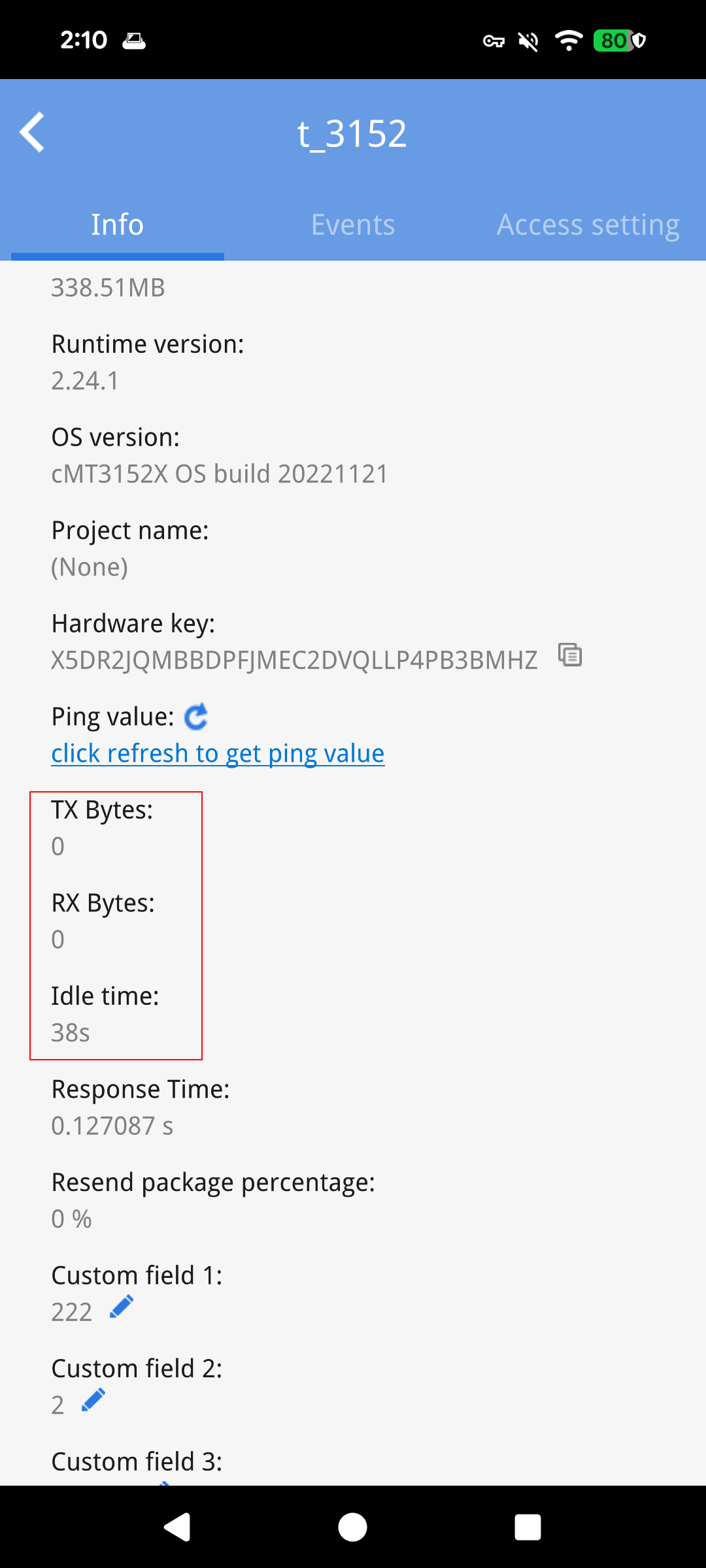
After the VPN connection is established, you can view the current idle time and the Tx / Rx traffic information on the HMI settings page (traffic is calculated every 5 seconds).
PC App
Android / iOS App
Note: When using OpenVPN, the PC cannot calculate traffic for a single connection; instead, it counts traffic for the entire network adapter. In addition, OpenVPN is not supported on mobile devices.